add_menu_page() WordPress Example: Build a Custom Admin Page, Step by Step
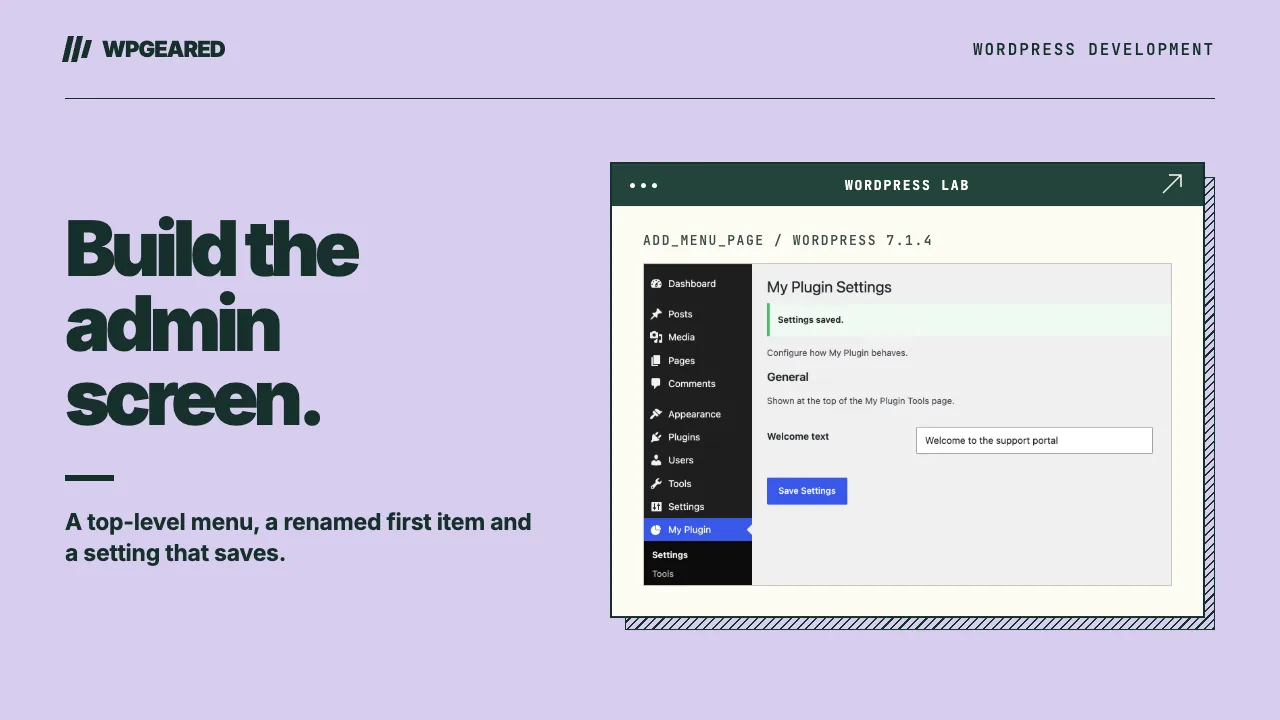
This add_menu_page() WordPress example takes you from an empty plugin file to a finished custom admin screen. You'll build a top-level menu with a renamed first item, a second submenu page, a setting saved through the Settings API, CSS and JS that load only on your pages, and a complete plugin you can paste in and activate. Every snippet was checked against WordPress 7.1, the current stable release.
One caveat before you start. If your plugin needs just one options page, the Plugin Handbook recommends adding it as a submenu under Settings or Tools, with add_options_page() or add_management_page(), instead of creating a new top-level menu. Everything below about callbacks, settings and assets works the same way there.
Step 1: Register the page on the admin_menu hook
Admin menus belong on the admin_menu action. It fires while WordPress builds the admin menu, before admin_init runs. Register your page later, on admin_init for example, and it isn't there when core checks whether the current user may open it, so you get "Sorry, you are not allowed to access this page." instead of your screen. On multisite, network admin pages use network_admin_menu.
Here's the smallest version that works:
<?php
function myplugin_register_menu() {
	global $myplugin_page_hooks;

	$myplugin_page_hooks['main'] = add_menu_page(
		__( 'My Plugin Settings', 'myplugin' ), // Page title.
		__( 'My Plugin', 'myplugin' ),          // Menu title.
		'manage_options',                       // Capability.
		'myplugin',                             // Menu slug.
		'myplugin_render_settings_page',        // Callback.
		'dashicons-chart-pie',                  // Icon.
		81                                      // Position: just below Settings (80).
	);
}
add_action( 'admin_menu', 'myplugin_register_menu' );

function myplugin_render_settings_page() {
	if ( ! current_user_can( 'manage_options' ) ) {
		return;
	}
	?>
	<div class="wrap">
		<h1><?php echo esc_html( get_admin_page_title() ); ?></h1>
	</div>
	<?php
}
Two habits start here. Prefix every function (myplugin_) so your code can't collide with another plugin's, and keep whatever add_menu_page() returns, because step 6 depends on it. A global keeps the example short; a class property works just as well. Your page now loads at wp-admin/admin.php?page=myplugin.
Step 2: add_menu_page() example, every parameter explained
Here's the full signature in WordPress 7.1:
add_menu_page(
	string    $page_title,
	string    $menu_title,
	string    $capability,
	string    $menu_slug,
	callable  $callback = '',
	string    $icon_url = '',
	int|float $position = null
): string
$page_title: the text in the browser's title tag while your page is open.$menu_title: the label shown in the admin sidebar.$capability: the capability a user needs to see the menu. Pass a capability string such asmanage_options. Numeric user levels are deprecated, and core flags them with "Usage of user levels is deprecated. Use capabilities instead." If the user lacks the capability, core never attaches your callback. Treat this as the first gate, not the only one (more in step 3).$menu_slug: a unique ID for the page, using only lowercase letters, numbers, dashes and underscores. It becomes the?page=value in the URL.$callback: the function that outputs the page content.$icon_url: despite the name, it isn't just for URLs. In 7.1 it accepts three forms:- a Dashicons class, such as
dashicons-chart-pie; - a base64-encoded SVG data URI starting with
data:image/svg+xml;base64,, which WordPress recolours to match the admin colour scheme; 'none', which leaves the icon container empty so you can add the icon with CSS.
Leave it empty and you get
dashicons-admin-generic. The Dashicons project no longer accepts icon requests, but the class names remain a documented, valid value, and nothing in 7.1 deprecates them. Looking ahead, trunk for WordPress 7.2, scheduled for December 2026, also accepts the name of a registered icon, such as'core-admin/pin'. Treat that as expected, not certain, until 7.2 ships.- a Dashicons class, such as
$position: where the item sits in the menu. Core's defaults are 2 Dashboard, 5 Posts, 10 Media, 20 Pages, 25 Comments, 60 Appearance, 65 Plugins, 70 Users, 75 Tools and 80 Settings. Leave it out and your item goes at the end. Two items on the same number no longer overwrite each other: core nudges the newcomer by a tiny offset, so you'll end up next to the other plugin, but in an order you can't predict. For precise placement, use a float such as25.5. A non-numeric value triggers a "doing it wrong" notice and sends the item to the end.
The return value is the page's hook suffix, toplevel_page_myplugin here. Store it. You'll use it to load assets in step 6.
Step 3: Render the page with the standard wrap markup
Every admin page callback should follow the same shape:
function myplugin_render_settings_page() {
	// Re-check the capability, even though core already gates the page.
	if ( ! current_user_can( 'manage_options' ) ) {
		return;
	}
	?>
	<div class="wrap">
		<h1><?php echo esc_html( get_admin_page_title() ); ?></h1>
		<p><?php esc_html_e( 'Configure how My Plugin behaves.', 'myplugin' ); ?></p>
	</div>
	<?php
}
The capability check comes first. Core already skips the callback for users who lack the capability, but the Plugin Handbook opens its own callbacks with this check anyway, and it costs three lines. Next comes <div class="wrap"> with an <h1>, the same structure the handbook's examples use.
Then escaping. Escape late, at the moment of output, and pick the function for the context: esc_html() for text, esc_attr() for attribute values, esc_url() for links, and the combined helpers esc_html_e() and esc_html__() for translated strings. That includes core values like get_admin_page_title(). When you need a link to your own page, menu_page_url( 'myplugin', false ) returns its URL already escaped. Passing it through esc_url() again at output keeps the habit consistent.
Step 4: Add submenus with add_submenu_page()
A second screen under your menu uses add_submenu_page():
add_submenu_page(
	$parent_slug,
	$page_title,
	$menu_title,
	$capability,
	$menu_slug,
	$callback = '',
	$position = null
)
The $position parameter has existed since WordPress 5.3. Unlike add_menu_page(), this function returns false when the current user lacks the capability, and the hook suffix otherwise.
There's one quirk. When you add the first submenu to your own top-level menu, core automatically inserts a copy of the parent as item one, so the sidebar shows "My Plugin" twice. To rename that item, make your first add_submenu_page() call use the parent's own slug and the same callback. Core skips the automatic copy when the slugs match, so your label takes its place and the page still renders.
function myplugin_register_menu() {
	global $myplugin_page_hooks;

	$myplugin_page_hooks['main'] = add_menu_page(
		__( 'My Plugin Settings', 'myplugin' ),
		__( 'My Plugin', 'myplugin' ),
		'manage_options',
		'myplugin',
		'myplugin_render_settings_page',
		'dashicons-chart-pie',
		81
	);

	// First submenu reuses the parent slug, so "My Plugin" becomes "Settings".
	add_submenu_page(
		'myplugin',
		__( 'My Plugin Settings', 'myplugin' ),
		__( 'Settings', 'myplugin' ),
		'manage_options',
		'myplugin',
		'myplugin_render_settings_page'
	);

	$myplugin_page_hooks['tools'] = add_submenu_page(
		'myplugin',
		__( 'My Plugin Tools', 'myplugin' ),
		__( 'Tools', 'myplugin' ),
		'manage_options',
		'myplugin-tools',
		'myplugin_render_tools_page'
	);
}
add_action( 'admin_menu', 'myplugin_register_menu' );
Store the submenu's return value as well. Submenu hook suffixes are built from the parent's menu title, here my-plugin_page_myplugin-tools. That title can be translated, so a hard-coded suffix can break on a multilingual site.
Step 5: Save a setting securely with the Settings API
The Settings API does the security work for you, provided the pieces line up. Register the setting, a section and a field on admin_init:
function myplugin_register_settings() {
	register_setting(
		'myplugin_settings',     // Option group: must match settings_fields().
		'myplugin_welcome_text', // Option name: must match the input's name.
		array(
			'type'              => 'string',
			'sanitize_callback' => 'sanitize_text_field',
			'default'           => '',
		)
	);

	add_settings_section(
		'myplugin_section_general',
		__( 'General', 'myplugin' ),
		'myplugin_render_section',
		'myplugin' // Page: must match do_settings_sections().
	);

	add_settings_field(
		'myplugin_welcome_text',
		__( 'Welcome text', 'myplugin' ),
		'myplugin_render_welcome_field',
		'myplugin',
		'myplugin_section_general'
	);
}
add_action( 'admin_init', 'myplugin_register_settings' );

function myplugin_render_section() {
	echo '<p>' . esc_html__( 'Shown at the top of the My Plugin Tools page.', 'myplugin' ) . '</p>';
}

function myplugin_render_welcome_field() {
	$value = get_option( 'myplugin_welcome_text', '' );
	echo '<input type="text" class="regular-text" name="myplugin_welcome_text" value="' . esc_attr( $value ) . '">';
}
Then point the page's form at options.php and let three functions build it:
function myplugin_render_settings_page() {
	if ( ! current_user_can( 'manage_options' ) ) {
		return;
	}
	?>
	<div class="wrap">
		<h1><?php echo esc_html( get_admin_page_title() ); ?></h1>
		<?php settings_errors(); ?>
		<form action="options.php" method="post">
			<?php
			settings_fields( 'myplugin_settings' );
			do_settings_sections( 'myplugin' );
			submit_button( __( 'Save Settings', 'myplugin' ) );
			?>
		</form>
	</div>
	<?php
}
Here's what each piece guards against. settings_fields() prints the nonce, action and option-group fields. On submit, options.php verifies that nonce, requires manage_options by default, refuses any option that isn't registered, and redirects back with settings-updated=true. The sanitize_callback cleans the value before it's stored. When you print the value back into the field, esc_attr() escapes it for the attribute.
The names must agree. The group in settings_fields() has to match register_setting(), and the input's name has to match the option name.
Two gotchas:
- No "Settings saved." message. Core only prints settings notices automatically on pages under Settings. On a top-level page, call
settings_errors()yourself, as above. - Saving fails for non-admins. If you gave the page a lower capability,
options.phpstill demandsmanage_optionsuntil you filteroption_page_capability_myplugin_settings.
If you'd rather handle the form yourself, post it to admin-post.php with a hidden action field and process it on admin_post_{$action}. You then own the security: add wp_nonce_field() to the form and call both check_admin_referer() and current_user_can() in the handler, because nonces "should never be relied on for authentication, authorization, or access control". Redirect back and exit when you're done. The handbook prefers the Settings API, so reach for it first.
Step 6: Load CSS and JS only on your page
admin_enqueue_scripts passes your callback the current page's hook suffix. Compare it with the values you stored and return early on every other screen:
function myplugin_enqueue_admin_assets( $hook_suffix ) {
	global $myplugin_page_hooks;

	if ( empty( $myplugin_page_hooks ) || ! in_array( $hook_suffix, $myplugin_page_hooks, true ) ) {
		return;
	}

	wp_enqueue_style(
		'myplugin-admin',
		plugins_url( 'assets/admin.css', __FILE__ ),
		array(),
		'1.0.0'
	);

	wp_enqueue_script(
		'myplugin-admin',
		plugins_url( 'assets/admin.js', __FILE__ ),
		array(),
		'1.0.0',
		array( 'in_footer' => true )
	);
}
add_action( 'admin_enqueue_scripts', 'myplugin_enqueue_admin_assets' );
Skip the check and your files load on every admin screen, which often causes conflicts. Note the last argument to wp_enqueue_script(): the current signature takes an $args array, so in_footer goes inside it.
The complete add_menu_page() plugin
Save this as wp-content/plugins/myplugin/myplugin.php, add assets/admin.css and assets/admin.js next to it (empty files are fine to start), and activate it from the Plugins screen.
<?php
/**
 * Plugin Name: My Plugin Admin Page
 * Description: A custom admin page built with add_menu_page(), a submenu and the Settings API.
 * Version:     1.0.0
 * Text Domain: myplugin
 */

if ( ! defined( 'ABSPATH' ) ) {
	exit;
}

/**
 * Register the top-level menu and its submenus, storing each hook suffix.
 */
function myplugin_register_menu() {
	global $myplugin_page_hooks;

	$myplugin_page_hooks['main'] = add_menu_page(
		__( 'My Plugin Settings', 'myplugin' ), // Page title.
		__( 'My Plugin', 'myplugin' ),          // Menu title.
		'manage_options',                       // Capability.
		'myplugin',                             // Menu slug.
		'myplugin_render_settings_page',        // Callback.
		'dashicons-chart-pie',                  // Icon.
		81                                      // Position: just below Settings (80).
	);

	// First submenu reuses the parent slug, so "My Plugin" becomes "Settings".
	add_submenu_page(
		'myplugin',
		__( 'My Plugin Settings', 'myplugin' ),
		__( 'Settings', 'myplugin' ),
		'manage_options',
		'myplugin',
		'myplugin_render_settings_page'
	);

	$myplugin_page_hooks['tools'] = add_submenu_page(
		'myplugin',
		__( 'My Plugin Tools', 'myplugin' ),
		__( 'Tools', 'myplugin' ),
		'manage_options',
		'myplugin-tools',
		'myplugin_render_tools_page'
	);
}
add_action( 'admin_menu', 'myplugin_register_menu' );

/**
 * Register the setting, its section and its field.
 */
function myplugin_register_settings() {
	register_setting(
		'myplugin_settings',     // Option group: must match settings_fields().
		'myplugin_welcome_text', // Option name: must match the input's name.
		array(
			'type'              => 'string',
			'sanitize_callback' => 'sanitize_text_field',
			'default'           => '',
		)
	);

	add_settings_section(
		'myplugin_section_general',
		__( 'General', 'myplugin' ),
		'myplugin_render_section',
		'myplugin' // Page: must match do_settings_sections().
	);

	add_settings_field(
		'myplugin_welcome_text',
		__( 'Welcome text', 'myplugin' ),
		'myplugin_render_welcome_field',
		'myplugin',
		'myplugin_section_general'
	);
}
add_action( 'admin_init', 'myplugin_register_settings' );

function myplugin_render_section() {
	echo '<p>' . esc_html__( 'Shown at the top of the My Plugin Tools page.', 'myplugin' ) . '</p>';
}

function myplugin_render_welcome_field() {
	$value = get_option( 'myplugin_welcome_text', '' );
	echo '<input type="text" class="regular-text" name="myplugin_welcome_text" value="' . esc_attr( $value ) . '">';
}

/**
 * Settings page (top level and the "Settings" submenu).
 */
function myplugin_render_settings_page() {
	if ( ! current_user_can( 'manage_options' ) ) {
		return;
	}
	?>
	<div class="wrap">
		<h1><?php echo esc_html( get_admin_page_title() ); ?></h1>
		<p><?php esc_html_e( 'Configure how My Plugin behaves.', 'myplugin' ); ?></p>
		<?php settings_errors(); ?>
		<form action="options.php" method="post">
			<?php
			settings_fields( 'myplugin_settings' );
			do_settings_sections( 'myplugin' );
			submit_button( __( 'Save Settings', 'myplugin' ) );
			?>
		</form>
	</div>
	<?php
}

/**
 * Tools submenu page.
 */
function myplugin_render_tools_page() {
	if ( ! current_user_can( 'manage_options' ) ) {
		return;
	}
	$welcome = get_option( 'myplugin_welcome_text', '' );
	?>
	<div class="wrap">
		<h1><?php echo esc_html( get_admin_page_title() ); ?></h1>
		<p><?php echo esc_html( $welcome ); ?></p>
		<p>
			<a href="<?php echo esc_url( menu_page_url( 'myplugin', false ) ); ?>">
				<?php esc_html_e( 'Edit the welcome text', 'myplugin' ); ?>
			</a>
		</p>
	</div>
	<?php
}

/**
 * Load CSS and JS only on this plugin's pages.
 */
function myplugin_enqueue_admin_assets( $hook_suffix ) {
	global $myplugin_page_hooks;

	if ( empty( $myplugin_page_hooks ) || ! in_array( $hook_suffix, $myplugin_page_hooks, true ) ) {
		return;
	}

	wp_enqueue_style(
		'myplugin-admin',
		plugins_url( 'assets/admin.css', __FILE__ ),
		array(),
		'1.0.0'
	);

	wp_enqueue_script(
		'myplugin-admin',
		plugins_url( 'assets/admin.js', __FILE__ ),
		array(),
		'1.0.0',
		array( 'in_footer' => true )
	);
}
add_action( 'admin_enqueue_scripts', 'myplugin_enqueue_admin_assets' );
Troubleshooting
"Sorry, you are not allowed to access this page."
Core shows this message when the page you requested isn't registered for the current user. The likely causes below are inferred from how core runs that check, not taken from an official list:
- The menu is registered on the wrong hook, such as
admin_init. - The user lacks the capability you passed.
- The slug in the URL no longer matches the registered slug, often after a rename.
- A multisite network page was registered on
admin_menuinstead ofnetwork_admin_menu.
The menu doesn't show up
Check the same suspects: the capability, the hook, and any condition around your add_menu_page() call that happens to be false on this request.
Saving fails with "not allowed to manage options" or "modify unregistered settings"
The first means the user lacks manage_options and you haven't filtered option_page_capability_{group}. The second usually means the group in settings_fields() doesn't match register_setting(), or the option was never registered.
The menu sits in an odd place
Another plugin is probably using the same position number. Core offsets clashes instead of overwriting, so the order between the two isn't fixed. Pick a float such as 81.5 to settle it.
One last warning: hiding a menu with remove_menu_page() doesn't block access to the page, so never use it to restrict who can open a screen.
Wrap-up
A solid admin page comes down to five things: register it on admin_menu, keep the hook suffix, save through the Settings API with settings_errors() on the page, escape everything you print, and scope your assets to your own screens. If you only ever need one screen, move it under Settings with add_options_page().