DARTIframe.html not found: what it means and how to fix it
A DARTIframe.html not found error can come from a Google ad integration that expects an iframe helper file on your domain. First identify the tag making the request. If its current integration instructions require the file, get it through Google's documentation and serve it at the exact requested location. A 404 in a log, by itself, is not a reason to add it.
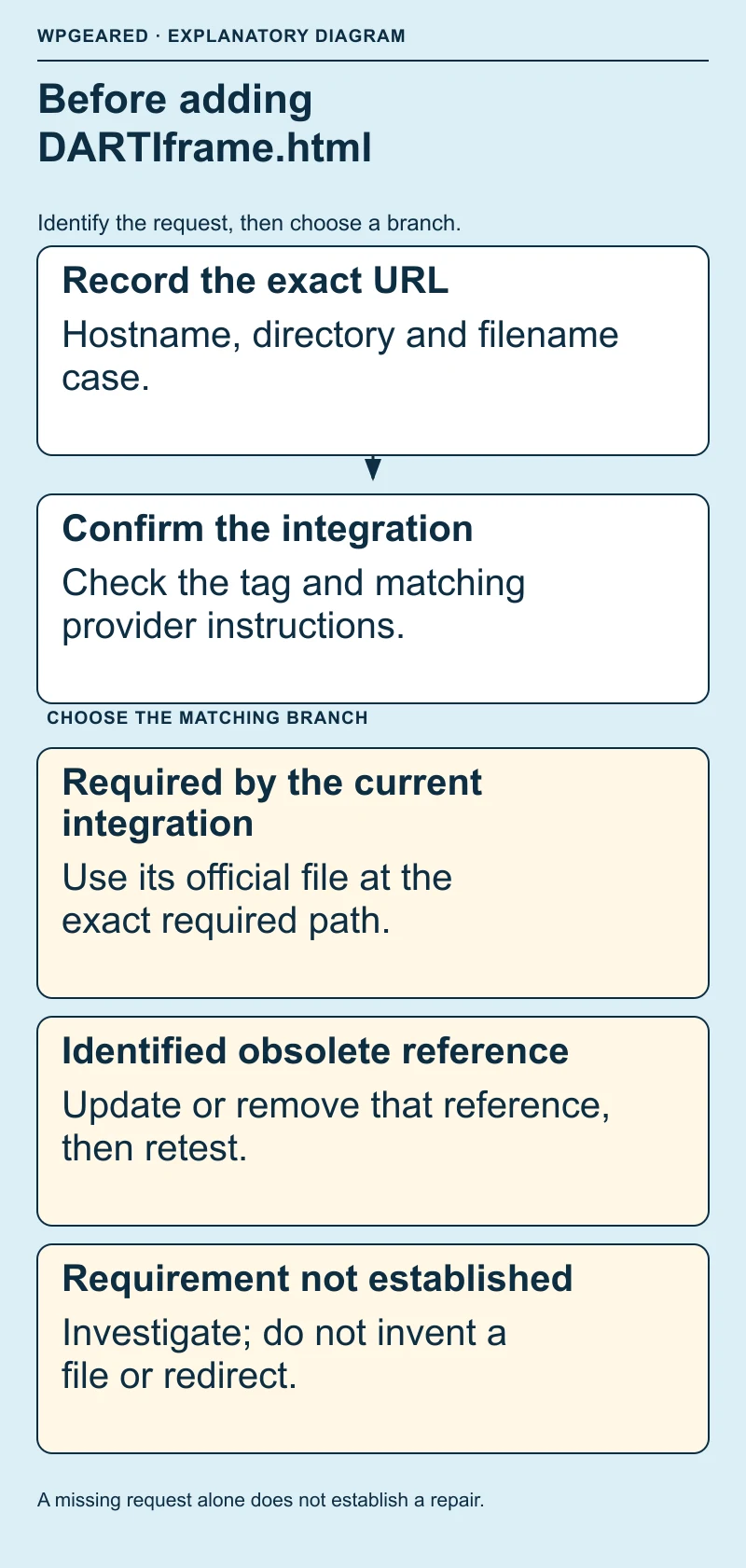
Before changing WordPress, establish which ad setup requests the file, which hostname receives the request and which path the setup expects.
What is DARTIframe.html?
Google's Studio iframe solution describes a helper that lets certain rich-media ads communicate across iframe boundaries. The documented solution has integration requirements and limits; it does not make this file a standard WordPress component. Checked November 2026.
Google also still documents a file-based remedy for a particular Ad Exchange rejected-request case. That is a reason to inspect the matching instructions, not proof that every AdSense publisher needs the file.
Be precise about spelling. DARTIframe.html and DRAFTIframe.html are different filenames. Likewise, doubleclick and double-click are different directories. Following a tutorial with the wrong spelling can leave the original request broken even after an upload.
1. Find the page and tag making the request
Open a page where the problem occurs, then open your browser's developer tools and its Network panel. Reload the page and filter the requests for DARTIframe.
For a matching request, record:
- The full URL, including hostname, path and filename case.
- Its HTTP status and response body.
- The page you were viewing when it happened.
- The request's initiator, if the browser identifies the script or chain that started it.
- Any related message in your ad account.
An illustrative URL is https://example.com/doubleclick/DARTIframe.html. Your actual request may use another hostname or directory. Copy what you observe rather than substituting that example.
If an ad-management company supplies your tags, send it those details and ask whether the current integration requires this helper. A server log tells you that someone requested a URL; it does not establish which active integration, if any, needs it.
If you cannot reproduce the request, retain the log entry and check the referring integration before making a speculative upload.
2. Choose the fix that matches the evidence
| What you establish | Next action |
|---|---|
| An active ad integration requires this file | Follow the matching Google or ad-provider instructions and verify its exact public path. |
| An old tag still requests it after that integration was replaced | Correct or remove the identified obsolete tag through its normal configuration. |
| Only an unexplained missing URL appears in logs | Investigate the caller; do not invent a helper file or redirect it to your homepage. |
| The missing URL is an actual article or landing page | Investigate that content URL separately from the ad helper. |
Google's Ad Manager crawler guidance covers problems such as unavailable content and malformed page URLs. Uploading an iframe helper does not restore a missing article or correct a page URL passed incorrectly in an ad tag. Checked November 2026.
3. Upload the official file only when required
Open the current instructions for your integration. For Studio, use the download linked from Google's iframe-solution instructions. For the applicable Ad Exchange case, use the file supplied through Google's rejected-request help page. Avoid downloads attached to old forum posts or third-party mirrors.
The Studio documentation describes /doubleclick/DARTIframe.html as a default, while its path-configuration instructions allow a configured directory. Follow the actual tag configuration and matching product instructions. These pages were checked November 2026; there is no single directory to assume for every setup.
Before uploading:
- Confirm the requested domain or subdomain and its public document root with your host.
- Check the downloaded filename and the file supplied by the official source.
- Use your host's supported secure file-access method to create the required directory, if needed.
- Upload the file with the exact filename and case.
- Keep a record of what you added and where.
You do not need to install a WordPress file-manager plugin merely to perform this upload. If you cannot establish the document root or correct integration, ask the host or ad provider to confirm it first.
4. Verify the response and the original ad page
Request the exact URL you recorded earlier. In the browser's Network panel, check both the status and response. The goal is the intended helper file returning HTTP 200, not your site's homepage, a login screen or a branded “not found” page.
Then reload the original ad page and inspect its request again. A file working on www.example.com does not prove it is available on a different hostname used by the tag.
Check the relevant ad-account warning or ask the managed ad provider to confirm the integration. Keep file-response verification separate from account-reporting changes; do not assume that a successful upload guarantees an immediate warning update.
If DARTIframe.html still returns an error
Check the hostname, directory spelling and filename case first. If the URL returns a normal WordPress page, ask the host whether routing or access rules intercept the static file. Avoid changing broad rewrite rules to solve one unconfirmed request.
If the file is reachable but the ad behavior is still wrong, return to the integration instructions. Google's Studio solution has limitations, including its documented nested-iframe restriction. Repeated uploads will not fix an unsupported tag arrangement.
For an identified obsolete reference, remove that reference and retest the page. An unrelated genuinely missing resource can remain a 404 response; redirecting it to the homepage does not supply the requested file.
An ads.txt authorization warning needs a different investigation. Use the WordPress ads.txt troubleshooting guide if that is the warning your account actually reports.