How to migrate from Weebly to WordPress, step by step
To migrate from Weebly to WordPress, build a staging site, inventory every public URL, and move a representative page, post and product before moving the rest. The classic Weebly ZIP is a useful static archive. It cannot recreate a working WordPress site or recover all your blog and store records.
How to migrate from Weebly to WordPress without losing the inventory
First identify which editor you use. The classic Weebly editor and Square Online do not necessarily expose the same menus or exports. Open the account that currently owns the site, confirm you can reach its content and domain settings, and write down where email and DNS are managed. A business domain can be registered with one company, use nameservers at another, serve a website from Weebly and send mail through a fourth provider. Moving the site does not require changing all four.
Make a URL map before choosing a theme. Use navigation, the sitemap where available, old campaign links and landing pages from search reports to find URLs people actually use. Include contact forms, downloadable files, image-heavy pages, blog archives and individual posts. A page that is absent from the main menu can still receive most of the site's search traffic.
| Old item | Save before moving | Acceptance check |
|---|---|---|
| Ordinary page | Full URL, headings, copy, title, files and main action | New page has the correct content and a working action |
| Blog post | Body, date, author, slug, categories and images | Individual post and archive both open |
| Product or variant | SKU, options, price, tax, stock and images | Correct variant adds to cart at the intended price |
| Form | Fields, required states, recipients and confirmation | A staging submission reaches a controlled mailbox |
| Domain and mail | Current records, hostnames and certificate coverage | Website works over HTTPS and mail still sends and receives |
Step 1. Export what your Weebly account actually provides
In a classic editor with the Archive option, request the ZIP through the site settings and store it privately. Weebly's backup instructions say that database-backed blog and store pages are excluded and that features such as forms or slideshows may not work outside Weebly. Unzip a copy and inspect several files. Do not cancel the old account because the download completed.
For the blog, check whether a feed is available and inspect an older post as well as the newest. Some feeds contain excerpts or only recent entries. Count the available items and compare against the inventory before choosing an import route. Recover missing posts from the authenticated editor or public pages while you still control them. Keep publishing dates, author attribution, image permissions and captions with the text.
For a shop, obtain the available catalog and order exports from the account that owns those records. Keep customer records in private storage. A static product page is not a reliable record of variant inventory or historical orders. Decide whether orders will be imported into the new store or retained in a private archive accessible to support staff.
Step 2. Set up WordPress on staging and try one of each content type
Create the new site behind an access restriction, configure its language and time zone, and choose a permalink scheme that preserves valuable existing paths where practical. Build an ordinary page with core blocks. Import a post only if you have a compatible source format. WordPress's import handbook explains the available importers. A Weebly site ZIP is not WordPress eXtended RSS (WXR). Renaming it XML does not convert it.
For a small site, manual reconstruction can take less time than debugging an importer and then fixing imported layout markup. For a larger one, prepare an explicit transformation from your available feed or structured export into WordPress records. Run a small sample first, inspect dates, paragraph breaks, internal links and ownership, and record how to avoid duplicates when retrying. A partially completed import that doubles every post on the next attempt is expensive to untangle.
Step 3. Bring images and downloadable files under your control
Open the new page source and check the actual image URLs, including responsive candidates. A picture can look correct while still loading from a Weebly CDN address. Download source files you have rights to use, upload them to the WordPress Media Library and link the correct sizes from the migrated content. Preserve descriptive captions and add useful alternative text where the image conveys information.
Check linked PDFs, buttons that download files, images inside posts and backgrounds set in the old theme. Try a private window with the old asset host blocked on your test browser. If images disappear, the migration still depends on the old account. Keep a mapping from the old file URL to its new destination where you control redirects.
Step 4. Rebuild forms and commerce as workflows
Recreate each form with its actual required fields, consent language, spam protection, confirmation and delivery address. Use a controlled staging recipient and check the message content, reply-to handling and error state. A confirmation page alone cannot tell you whether the intended mailbox received the inquiry. Preserve old submissions separately where the business needs them.
If using WooCommerce, its product CSV importer expects a documented column structure. Map and test one simple product and one product with variants. Verify SKU uniqueness, stock, tax class, shipping, currency and images. Try a sandbox checkout, refund flow and customer email. Copying a product description across does not migrate live payment credentials, subscriptions or order history. Establish an explicit plan for any recurring billing before cutover.
Step 5. Map redirects and plan the domain change
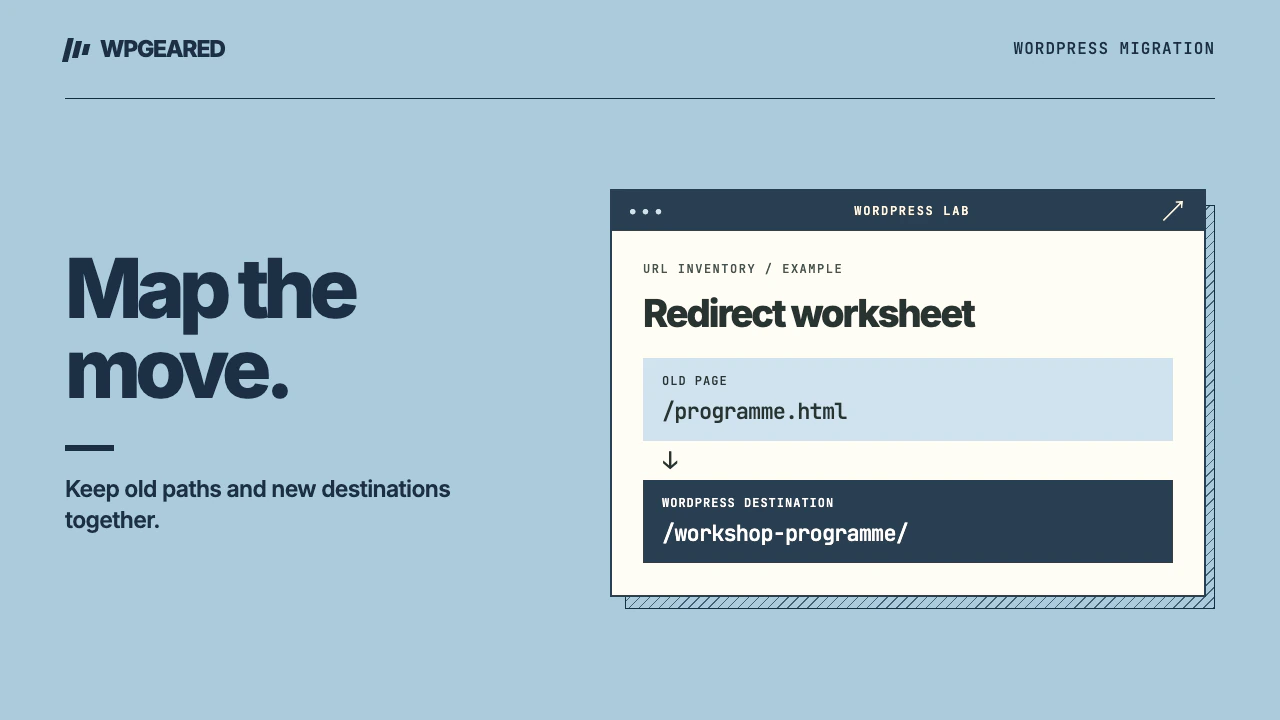
Use an old-path/new-path sheet. Preserve old paths when possible. For a permanently moved page, configure a direct permanent redirect at a layer that will receive requests to the old domain. Check representative legacy paths, case differences and trailing slashes. A broad redirect to the new homepage hides missing content and frustrates people following an old product or tutorial link. A Weebly-owned subdomain has different control limits from a custom domain you own. Verify the available redirect controls before giving up the old account.
Record the current DNS zone and the intended web records with the domain or hosting administrator. Keep mail records, verification records and unrelated subdomains intact. Prepare HTTPS for the canonical hostname and any alternate host that must redirect. Before changing the public web destination, check the new origin with the intended domain through your host's supported preview method. Agree on a rollback owner and the condition under which you will revert.
Step 6. Cut over and verify with real URLs
Pause editorial changes briefly, reconcile any final posts and recent orders, then make the agreed web-host change. Recheck the public homepage and deep URLs from an independent network. Verify certificates, status codes, the primary hostname, canonical tags, sitemap, navigation, forms and permitted store transactions. Remove staging-specific indexing restrictions from the production site while keeping the private staging copy protected.
Compare the old and new URL inventories. Record unresolved items and keep the old service accessible until essential files and records are accounted for. Inspect server errors and 404s after real traffic arrives. Use the maintenance checklist for backups and ongoing verification. If you'd like someone to manage the rebuild and cutover, use the Weebly to WordPress migration service. For a different site builder, start with the migration hub.