WordPress Maintenance Mode Without a Plugin (and the "Briefly Unavailable" Fix)
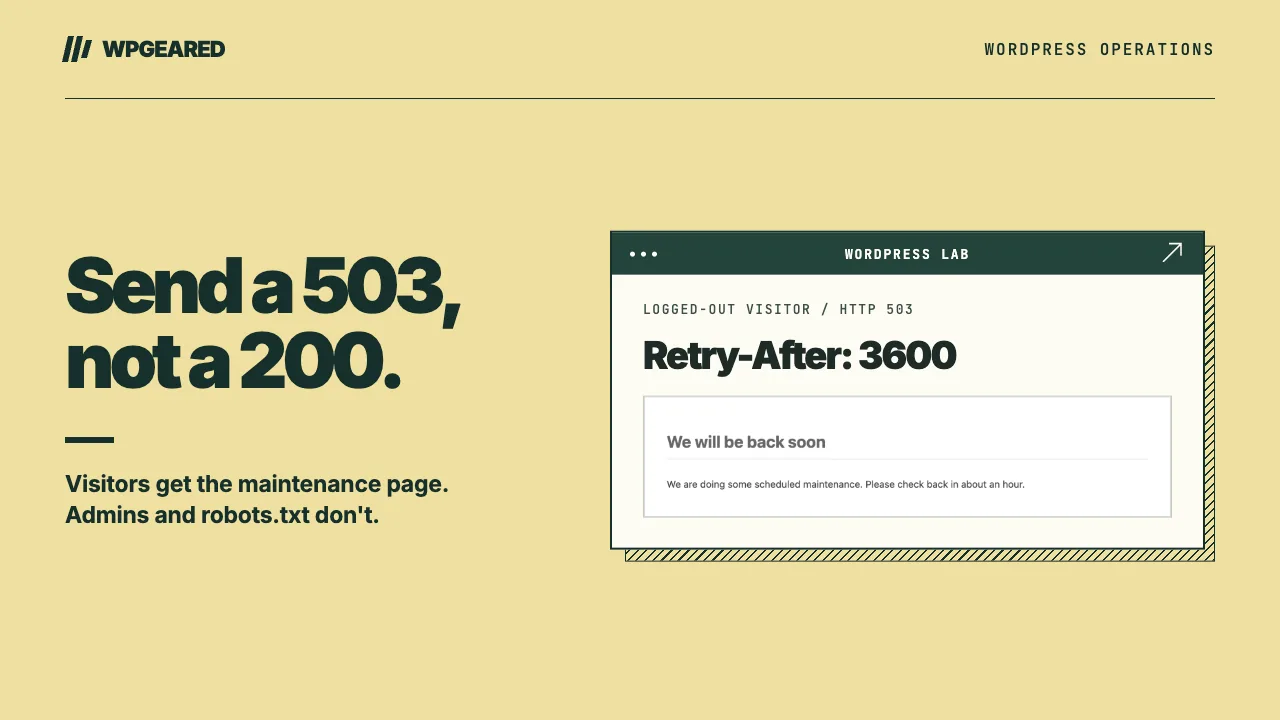
There are two ways to put WordPress into maintenance mode without a plugin: a short code snippet in a must-use plugin, which is the right choice for most people, or core's own .maintenance file, the one WordPress creates while it installs updates.
If your site is stuck on "Briefly unavailable for scheduled maintenance. Check back in a minute.", jump straight to the fix.
Everything in this guide follows one rule: a maintenance page must return HTTP status 503 (Service Unavailable), not 200 (OK). Google's guidance for planned downtime is built around it.
Which method should you use?
| Method 1: mu-plugin snippet | Method 2: core .maintenance file |
|
|---|---|---|
| How long it lasts | As long as you need | Expires after 10 minutes |
| Admin access | Admins see the site; wp-admin and wp-login.php work | Blocks everyone, including wp-admin and wp-login.php |
| Status code | 503 + Retry-After, under your control | 503 by default; a custom page on WordPress 7.1 must send it itself |
| How to turn it off | Delete or rename one file | Delete .maintenance (or wait 10 minutes) |
Use Method 1 for real maintenance work: a redesign, a migration, a long content change.
Method 2 is built for updates and runs before any plugin loads. If you use WP-CLI, wp maintenance-mode activate uses the same file, so the same limits apply.
How to enable WordPress maintenance mode without a plugin (mu-plugin)
A must-use plugin is a single PHP file that WordPress loads automatically and that can't be deactivated from the dashboard.
Step 1: Create the file
Over FTP or your host's File Manager, open wp-content/, create a mu-plugins folder if there isn't one, then create this file:
wp-content/mu-plugins/maintenance-mode.php
It must sit directly in mu-plugins/, not in a subfolder.
Step 2: Paste the code
<?php
/**
 * Plugin Name: Simple Maintenance Mode
 * Description: Shows visitors a 503 maintenance page. Administrators see the site as normal. Delete or rename this file to switch maintenance mode off.
 */

defined( 'ABSPATH' ) || exit;

add_action( 'template_redirect', function () {

	// Administrators see the normal site.
	if ( current_user_can( 'manage_options' ) ) {
		return;
	}

	// Never send a 503 for robots.txt: Google says that blocks all crawling.
	if ( is_robots() ) {
		return;
	}

	// Tell browsers and crawlers when to try again, in seconds.
	// This must be sent before wp_die(), which doesn't send it for you.
	header( 'Retry-After: 3600' );

	wp_die(
		'<h1>We will be back soon</h1><p>We are doing some scheduled maintenance. Please check back in about an hour.</p>',
		'Down for maintenance',
		array( 'response' => 503 )
	);
} );
Save the file, and maintenance mode is on. Open the site in a private window to see what visitors see.
What each part does
The hook. template_redirect fires just before WordPress picks a theme template (template_redirect reference). It runs only for front-end requests. The login screen and wp-admin never reach it, so this snippet can't lock you out.
The admin check. current_user_can( 'manage_options' ) lets administrators through. The WordPress Developer Blog's maintenance example uses is_user_logged_in() instead. That's looser: it lets every logged-in user through, including subscribers and shop customers. It's a good choice if editors need to see the site too.
The robots.txt exception. Without is_robots(), the snippet would also send a 503 for WordPress's virtual robots.txt. Google warns that a 503 on robots.txt "blocks all crawling" (Google Search Central). A physical robots.txt file served directly by the web server isn't affected.
Retry-After. wp_die() doesn't send this header, so you set it first. 3,600 seconds (one hour) matches the Developer Blog example. Change it to fit your maintenance window.
wp_die() with 503. Passing 'response' => 503 makes the default handler send the 503 status and no-cache headers (wp_die reference). Don't leave the response code out: the default is 500.
The snippet doesn't block REST API requests to /wp-json/, which finish before template_redirect fires. That's intended: the block editor needs the REST API while you work.
Prefer functions.php?
You can paste the same code (without the plugin header comment) at the end of your theme's functions.php. It works the same way, but it switches off silently if you change themes.
Method 2: WordPress core's built-in .maintenance file
How core uses it
During core updates, automatic updates and some plugin and theme updates, WordPress writes a file called .maintenance into the WordPress root (the folder that holds wp-config.php). It contains one line with a timestamp:
<?php $upgrading = 1762941600; ?>
When the update finishes, core deletes the file. Not every plugin update creates it: a bulk update does only when an active plugin is being updated, or on Multisite.
On every request, core checks for the file with wp_is_maintenance_mode(). The site counts as in maintenance only if the file exists and its timestamp is less than 10 minutes old. While it is, visitors get "Briefly unavailable for scheduled maintenance. Check back in a minute." with a 503 status and Retry-After: 600.
This check runs before any plugin or theme loads, and it has no exception for administrators, so wp-admin and wp-login.php are blocked too. That's fine for a 30-second update. It's a poor fit for an afternoon of work.
Custom maintenance page: wp-content/maintenance.php
If a file called maintenance.php exists in wp-content/, core shows it instead of the default message. What happens to the status code depends on your WordPress version.
WordPress 7.1 (current release, 7.1.4): core loads your maintenance.php and stops without sending any status header. Unless your file sends a 503 itself, the page goes out as a 200. WordPress helpers such as status_header() aren't loaded yet at that point, so use plain PHP:
<?php
// wp-content/maintenance.php
// Shown by WordPress core while a .maintenance file is active.
http_response_code( 503 );
header( 'Retry-After: 600' );
header( 'Cache-Control: no-cache, must-revalidate, max-age=0, no-store, private' );
?>
<!DOCTYPE html>
<html lang="en">
<head>
	<meta charset="utf-8">
	<title>Down for maintenance</title>
</head>
<body>
	<h1>Back in a few minutes</h1>
	<p>We're updating the site. Please refresh shortly.</p>
</body>
</html>
WordPress 7.2 (scheduled for 8 December 2026): core will send the 503, no-cache headers and Retry-After: 600 before it loads your drop-in, and your file can still override them (the 7.2 change). The headers in the file above are harmless there.
A trick to avoid
Some tutorials suggest writing <?php $upgrading = time(); ?> into .maintenance by hand. Because core loads the file on every request, the timestamp is always "now", so maintenance never expires until you delete the file. It still locks you out of wp-admin, and wp maintenance-mode status reports it as inactive even while the site is down. Use the mu-plugin instead.
WP-CLI
If you have shell access, WP-CLI manages the same file, with the same 10-minute expiry (command reference):
wp maintenance-mode activate
wp maintenance-mode status
wp maintenance-mode deactivate
How to fix "Briefly unavailable for scheduled maintenance. Check back in a minute."
This message means a WordPress update was interrupted, or is still running, and left the .maintenance file in your WordPress root. Your content is not gone.
Step 0: Wait a few minutes if the update just started
Many guides say the site is "stuck" until you act. It isn't. Core ignores .maintenance once its timestamp is 10 minutes old, so the message clears on its own. If you clicked Update moments ago, give it a few minutes before touching any files.
Step 1: Delete the .maintenance file
- Connect with FTP or open your host's File Manager.
- Go to the WordPress root: the folder that contains
wp-config.phpandwp-content/. - Turn on "show hidden files": many FTP clients and file managers hide files that start with a dot.
- Delete
.maintenance.
Reload the site. Maintenance mode ends immediately. With WP-CLI, run wp maintenance-mode deactivate instead.
Step 2: Check the update actually finished
Removing the file brings the site back, but it doesn't finish the update. Check that it completed:
- Go to Dashboard → Updates and see whether anything is still listed.
- Compare the versions on the Plugins and Themes screens with what you meant to install.
- Load a few front-end pages and wp-admin screens and look for errors.
Since WordPress 6.3, a failed manual plugin or theme update restores the previous version from wp-content/upgrade-temp-backup/ (Make WordPress Core). That covers updates that fail with an error. It isn't documented for a process killed partway through, such as by a timeout. If a version looks wrong, run that update again.
If the message persists well beyond 10 minutes
Core's timer can't explain that. Check these:
- Open
.maintenancebefore deleting it. If it containstime()instead of a number, someone used the hand-edited trick above, and it won't expire on its own. - Purge your page cache and CDN. A cache can keep serving a copy of the maintenance page after the file is gone.
- Reload the folder after a minute. If
.maintenancereappears, an update may be running again in the background. Wait for it to finish, then check the result as in Step 2.
Why 503 matters for SEO (and remembering to turn it off)
A 503 means "temporarily unavailable". When Google sees one, it slows its crawling and keeps your already-indexed pages for the time being (Google Search Central).
A 200 says the opposite: this maintenance notice is the page. Google's 2011 guidance on planned downtime advised 503 rather than 200 or 404. Even with a 503, Google can't refresh your titles, descriptions or structured data until the site is back.
Keep the window short. Google doesn't recommend serving 503s for longer than 1–2 days, and URLs that return errors for multiple days may be dropped from the index (reduce crawl rate).
Retry-After is a hint, not a booking. Google recommends sending it "with a best effort date or duration", but its older guidance only says Googlebot "may use" it.
If you're closing for longer than a few days, Google suggests a normal 200 page that explains the closure, rather than a long run of 503s.
When you're done, turn it off:
- Delete or rename
wp-content/mu-plugins/maintenance-mode.php(for example, tomaintenance-mode.php.off). - Purge your page cache and CDN.
- Load the site in a private window to confirm visitors see it.
Troubleshooting
Visitors still see the normal site (or still see maintenance after you switch it off)
Page-cache drop-ins load before mu-plugins, so a cached copy of a page can reach logged-out visitors without the snippet ever running. Server and CDN caches sit in front of WordPress entirely. Purge every cache layer after you switch maintenance on, and again after you switch it off.
Check the status code
From a terminal, run:
curl -I https://example.com/
You should see HTTP/1.1 503 (or HTTP/2 503) and a Retry-After line. Google recommends confirming your 503 this way.
Locked out of wp-admin
With Method 1 you can't be: /wp-login.php and wp-admin never run the snippet. With Method 2, delete .maintenance from the WordPress root, and you're back in.