How to Configure SMTP in WordPress Without a Plugin (and Fix Emails Not Sending)
Your contact form says "Message sent." The customer never gets it. Password resets vanish, WooCommerce order emails go missing, and WordPress shows no error. That silence is the real problem: WordPress reports success once the message is handed off, not when it reaches an inbox.
The fix is to configure SMTP in WordPress without a plugin: one short must-use plugin that sends your mail through an authenticated email provider instead of your server's default mailer. This guide gives you the complete file, a test, a failure log and a troubleshooting checklist for when emails still don't arrive.
Why WordPress emails fail by default
Every email WordPress sends goes through wp_mail(). That function loads the PHPMailer library bundled with core and, by default, tells it to use PHP's mail() function. PHP's mail() then passes the message to whatever local mail program the server is configured to use.
That chain has two weak points.
First, a true result proves very little. The PHP manual is blunt: "just because the mail was accepted for delivery, it does NOT mean the mail will actually reach the intended destination." When wp_mail() returns true, all you know is that the server's mail program took the message.
Second, many hosts disable, rate-limit or discourage PHP mail() and steer site owners toward a dedicated email service.
The default sender doesn't help. Unless something changes it, WordPress sends from wordpress@yourdomain.com with the name "WordPress", which often isn't a real mailbox.
After WordPress sets up PHPMailer, it fires the phpmailer_init action and passes you the PHPMailer object by reference. Hook into it, switch the transport to SMTP, and your mail goes through an authenticated provider instead.
Step 1: Pick an SMTP provider and collect its settings
You need four things from your provider: the SMTP host, the port, the encryption that goes with that port, and credentials (usually an app password or API key, not your login password). Here are the settings for three common choices as of November 2026. Providers change them, so check each provider's own docs before you copy anything.
| Provider | Host | Port and encryption | Username | Password |
|---|---|---|---|---|
| Google Workspace | smtp.gmail.com |
587 STARTTLS or 465 SSL | Your full Workspace address | App password |
| SendGrid | smtp.sendgrid.net |
587 STARTTLS (465 SSL and 2525 also offered) | The literal string apikey |
API key with Mail permission |
| Postmark | smtp.postmarkapp.com |
587 STARTTLS (2525 also offered; 465 isn't listed) | Server API Token | The same Server API Token |
Google Workspace: your account password no longer works for SMTP. You need a 16-digit app password, and app passwords only work once 2-Step Verification is on. Your admin may have disabled them, and Google revokes them whenever the account password changes. The limit of 2,000 messages a day makes this a poor fit for a busy store. For apps, Google recommends its SMTP relay service (smtp-relay.gmail.com), which authenticates by IP address instead.
SendGrid: you need a verified Sender Identity before you can send.
Postmark: use the Server API Token, not the Account API Token.
On Microsoft 365? Microsoft announced in January 2026 that basic-auth SMTP AUTH will be disabled by default for existing Exchange Online tenants at the end of December 2026. Admins can switch it back on for now, and a final removal date is due to be announced in the second half of 2027. A username-and-password setup like this one won't last there, so check that post for timeline changes before you rely on it.
Step 2: Store SMTP credentials in wp-config.php
Keep the password out of your database, your theme and any file you commit to Git. Add these constants to wp-config.php above the "stop editing" comment: custom constants must be defined before the line that requires wp-settings.php.
// SMTP settings. Replace every placeholder with your provider's values.
define( 'SMTP_HOST', 'smtp.example.com' );
define( 'SMTP_PORT', 587 ); // 587 = STARTTLS, 465 = SSL
define( 'SMTP_USER', 'your-smtp-username' );
define( 'SMTP_PASS', 'your-smtp-password-or-api-key' );
define( 'SMTP_FROM', 'noreply@yourdomain.com' );
define( 'SMTP_FROM_NAME', 'Your Site Name' );
wp-config.php sits outside your theme and plugins, so theme switches and plugin updates never touch it, and it's easy to keep out of version control and shared backups. Never commit it or paste it into a support ticket.
Two hardening steps from WordPress's own docs: set the file's permissions to 400 or 440, and, if your host allows it, move wp-config.php one directory above the WordPress root.
Step 3: Configure SMTP in WordPress without a plugin using phpmailer_init
"Without a plugin" here means without a third-party plugin. The code lives in a must-use plugin, a single PHP file in wp-content/mu-plugins/. Must-use plugins are always active and can't be deactivated from wp-admin, and unlike code in functions.php, they survive a theme switch. Two caveats: WordPress only loads PHP files at the top level of that folder, and must-use plugins don't show update notices, so you maintain this file yourself.
Create wp-content/mu-plugins/smtp-mailer.php (create the mu-plugins folder if it doesn't exist) and paste in:
<?php
/**
 * Plugin Name: SMTP Mailer
 * Description: Sends WordPress email through authenticated SMTP using constants from wp-config.php.
 */

defined( 'ABSPATH' ) || exit;

// 1. Switch PHPMailer from PHP mail() to authenticated SMTP.
add_action( 'phpmailer_init', function ( $phpmailer ) {
	if ( ! defined( 'SMTP_HOST' ) || ! defined( 'SMTP_USER' ) || ! defined( 'SMTP_PASS' ) ) {
		return; // Not configured: leave WordPress's default mailer alone.
	}

	$phpmailer->isSMTP();
	$phpmailer->Host     = SMTP_HOST;
	$phpmailer->Port     = defined( 'SMTP_PORT' ) ? (int) SMTP_PORT : 587;
	$phpmailer->SMTPAuth = true;
	$phpmailer->Username = SMTP_USER;
	$phpmailer->Password = SMTP_PASS;

	// 465 = implicit TLS (SMTPS). 587 (and 2525) = STARTTLS. Don't mix them up.
	$phpmailer->SMTPSecure = ( 465 === $phpmailer->Port )
		? PHPMailer\PHPMailer\PHPMailer::ENCRYPTION_SMTPS
		: PHPMailer\PHPMailer\PHPMailer::ENCRYPTION_STARTTLS;
} );

// 2. Replace only WordPress's default sender. Senders set by other plugins
//    (WooCommerce, for example) are left as they are.
add_filter( 'wp_mail_from', function ( $from_email ) {
	if ( defined( 'SMTP_FROM' ) && 0 === strpos( $from_email, 'wordpress@' ) ) {
		return SMTP_FROM;
	}
	return $from_email;
} );

add_filter( 'wp_mail_from_name', function ( $from_name ) {
	if ( defined( 'SMTP_FROM_NAME' ) && 'WordPress' === $from_name ) {
		return SMTP_FROM_NAME;
	}
	return $from_name;
} );

// 3. Log failures. Only the error message is logged, never the message body.
add_action( 'wp_mail_failed', function ( $error ) {
	error_log( 'wp_mail failed: ' . $error->get_error_message() );
} );
What each part does:
- The early return keeps the default mailer when the constants are missing, so a copy of the site without credentials (a local install, say) doesn't fail on undefined constants.
isSMTP()switches PHPMailer from PHPmail()to SMTP.SMTPSecureuses PHPMailer's namespaced constants.ENCRYPTION_STARTTLSgoes with port 587 andENCRYPTION_SMTPSwith port 465, and PHPMailer's troubleshooting guide is explicit: don't mix up these modes. The code picks the right one from the port, so you only set the port.- The From filters sit outside
phpmailer_initbecause WordPress callssetFrom()before that hook fires, so setting From inside it would override every sender on the site, including WooCommerce, which applies its configured "From" address through thewp_mail_fromfilter. These filters swap in your address only when WordPress would otherwise use its defaultwordpress@sender. The trade-off: senders set by other plugins go out unchanged, so make sure those also use an address on your domain.
If you're coming from an older tutorial, don't require wp-includes/class-phpmailer.php or use the un-namespaced PHPMailer class: both have been deprecated since WordPress 5.5. And don't paste the example from the phpmailer_init reference page as-is: it uses port 25 and a hardcoded password.
Step 4: Send a test email and log failures
If you have WP-CLI, the quickest test is to call wp_mail() yourself through wp eval, which runs arbitrary PHP inside your WordPress install:
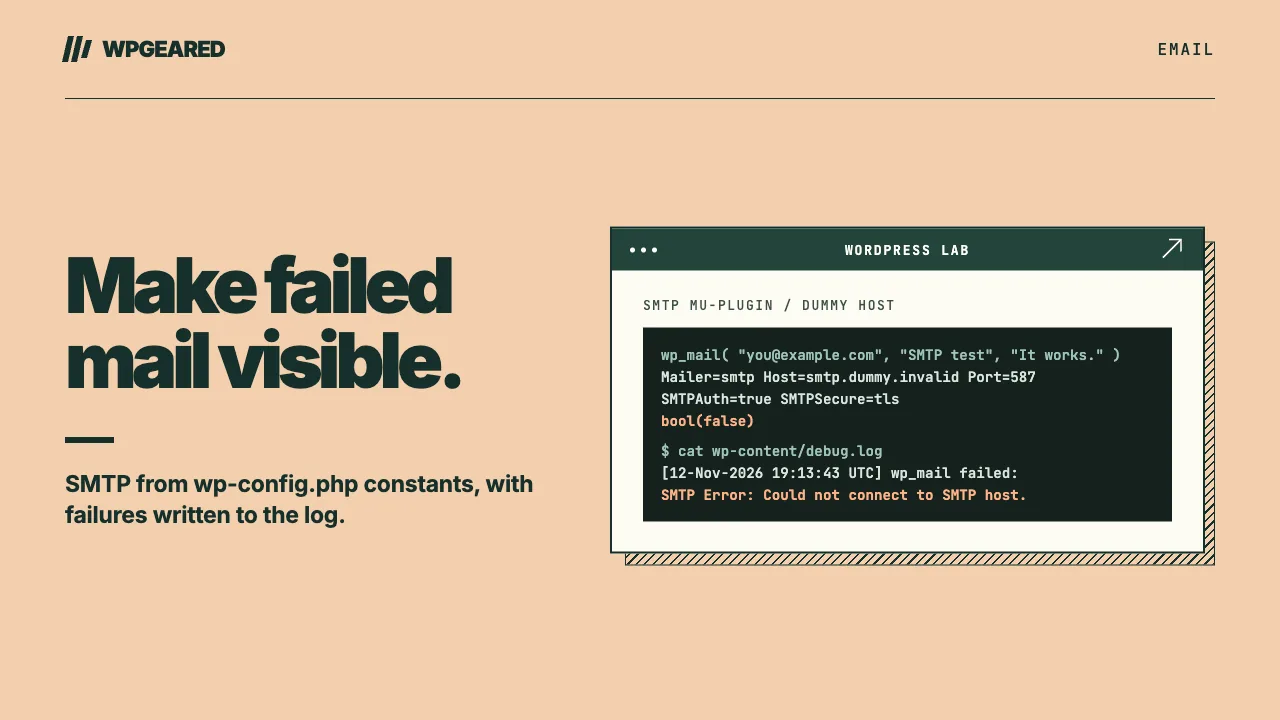
wp eval 'var_dump( wp_mail( "you@example.com", "SMTP test", "It works." ) );'
bool(true) means your SMTP provider accepted the message. It still doesn't prove delivery, so check the inbox and the spam folder. No WP-CLI? Request a password reset or submit your contact form instead.
If you get bool(false), the logger takes over. wp_mail_failed fires whenever PHPMailer throws an exception and passes a WP_Error holding the error message. The handler logs only that message, on purpose: the error object also carries the full mail data, including message bodies such as password-reset links, which you don't want sitting in a log file.
To read the log, briefly turn on WordPress's debug log in wp-config.php:
define( 'WP_DEBUG', true );
define( 'WP_DEBUG_LOG', true );
define( 'WP_DEBUG_DISPLAY', false );
Errors, including error_log() calls, then go to wp-content/debug.log. WordPress advises against running debug tools on live sites and warns that a publicly reachable log is a security risk, so switch this off and delete the log when you're done.
If the error message alone doesn't explain the failure, log PHPMailer's conversation with the server too. Inside the phpmailer_init callback, temporarily add:
$phpmailer->SMTPDebug   = PHPMailer\PHPMailer\SMTP::DEBUG_SERVER; // level 2
$phpmailer->Debugoutput = 'error_log'; // never echo to visitors
Level 2 is the usual troubleshooting level. Set SMTPDebug back to 0 afterwards. Don't "fix" certificate errors by turning off verification in SMTPOptions; PHPMailer's own docs advise against it.
WordPress not sending emails? Troubleshooting checklist
Match the error in your log to an item below. These are the usual causes, not a guaranteed fix for every setup.
Connection timed out or refused: the port is blocked
Some hosts block outgoing SMTP ports. DigitalOcean, for example, blocks ports 25, 465 and 587 on Droplets by default, while Google Compute Engine blocks only port 25. No code change gets past a blocked port. Your options:
- Try an alternate port your provider offers, such as 2525 for SendGrid or Postmark. Your host may block that too, so test it.
- Ask your host about its own mail relay.
- Send through your provider's HTTP API instead of SMTP (see the last section).
Authentication failed: wrong type of credential
Check the credential type, not just its spelling: an app password for Google Workspace, the literal username apikey for SendGrid, the Server API Token in both fields for Postmark. On Microsoft 365, basic-auth SMTP may simply be switched off.
TLS or handshake errors: port and encryption don't match
Port 587 pairs with STARTTLS and 465 with SMTPS. Check the pairing if you've hardcoded the encryption or your provider uses an unusual port.
"Sender not allowed" or rejected: the From address isn't yours
Many providers won't send from addresses you haven't verified; Gmail, for one, only sends as your login address or a configured alias. Contact forms are a common trap when they send "From" the visitor's address. Use an address on your own domain instead, and put the visitor's address in Reply-To.
Mail lands in spam, or never arrives: authenticate your domain
SMTP gets your mail accepted. Whether it reaches the inbox depends on your domain's DNS authentication. Since February 2024, Gmail has required everyone who sends to personal Gmail accounts to set up SPF or DKIM.
- SPF: Add your provider to your existing SPF record. A domain must have only one SPF record; publishing a second one causes an error, so merge them.
- DKIM: Turn on domain authentication or DKIM in your provider's dashboard and publish the DNS records it gives you.
- DMARC: Once SPF and/or DKIM are in place, wait 48 hours, then add a DMARC record with
p=none. Tighten it to quarantine or reject later.
Finally, check the spam folder and, if your provider has an activity log, whether the message was delivered, bounced or never received.
When a plugin (or something else) is the better choice
A plugin such as WP Mail SMTP makes more sense when your host blocks SMTP ports and you need to send through a provider's API, when you'd rather connect Gmail with OAuth than rely on app passwords, or when you want a settings screen and email logs (a Pro feature in WP Mail SMTP). If you run your own server, there's a third route: a local mail server such as Postfix relaying to your provider, which also means WordPress doesn't wait on the SMTP session.
For most sites, though, one mu-plugin, a few constants and an authenticated domain are enough to get WordPress email arriving again.