How to set up your blog's email on Android and iPhone
To set up business email on your phone, add your existing mailbox through its provider's supported sign-in flow, or use its IMAP and authenticated SMTP settings. Then test incoming mail, a new outgoing message and a reply from the correct address. Installing a free mail app does not create free domain-email hosting.
This guide covers the Gmail app on Android and Apple's Mail account setup on iPhone. It assumes your address already has a working mailbox. Setup time depends on the provider's authentication and the settings you need to complete.
1. Confirm that you have a mailbox, not just a forwarding address
Open your provider's webmail and sign in to the business address. Check that you can read and send messages there before connecting a phone.
If you have not created an account yet, start with creating a domain mailbox using your hosting. Return here after it can send and receive.
A forwarding alias is different. An address that forwards messages to personal Gmail does not necessarily have an IMAP login or its own outgoing service. Receiving a forwarded message also does not prove that a reply will come from your business address. Confirm the service you have before entering settings into an app.
Collect these details from your mailbox provider:
| Detail | What you need |
|---|---|
| Account identity | Your full business email address |
| Sign-in method | Supported provider login, mailbox password or provider-approved app password |
| Incoming connection | IMAP server, port and encryption |
| Outgoing connection | SMTP server, port, encryption and authentication requirements |
| Provider access | A working webmail login or another supported way to check server-held mail |
Use settings from your own mailbox provider, even if another tutorial shows a similar-looking address.
For cPanel mailboxes, the provider's Connect Devices page supplies client settings. Its documented secure configuration uses IMAP 993 and SMTP 465, but copy your provider's own server names and supported settings. Checked November 2026.
2. Add the mailbox to the Gmail app on Android
Google's Gmail app instructions, checked November 2026, support adding another provider's mailbox. Menu wording can change with the app version.
- Open Gmail and tap your profile picture.
- Tap Add another account.
- Choose the listed provider if it matches your mailbox service, then follow that provider's sign-in process.
- For a manually configured mailbox, choose Other, enter the full business address and select Personal (IMAP) when asked for the account type.
- Enter the required credentials and the provider's incoming settings.
- Complete the outgoing SMTP settings and any remaining account preferences.
Use the recognized-provider flow when it applies. Do not force every Google Workspace, Microsoft or other managed account through generic password fields.
If your provider requires additional authentication, follow its supported method. Some accounts use an app password; others use a provider sign-in page or administrator-controlled access. There is no universal “turn on app passwords” step for every business mailbox.
When the account has been added, switch into it and confirm which address appears. A combined inbox can make incoming mail look correct while the composing account is still your personal address.
3. Add the mailbox to Apple Mail on iPhone
Apple's current setup guide, checked November 2026, starts at Settings → Apps → Mail → Mail Accounts → Add Account. Labels can differ on other software versions.
Enter your email address and use the recognized provider's sign-in flow when available. For a manual account, use Add Other Account → Mail Account and enter the requested account information.
Choose IMAP for the server-synced mailbox, then supply the incoming and outgoing server details from your provider. Save the account after the device accepts the configuration.
If you do not know a server value, get it from the provider rather than experimenting with unrelated hostnames. Apple specifically directs users to their email provider for unknown settings. A guessed outgoing server can leave the account receiving messages but unable to send.
Open Mail and select the new account's mailbox. When composing a message, check the From field before sending, especially if you have several accounts on the phone.
4. Prove that the address works in both directions
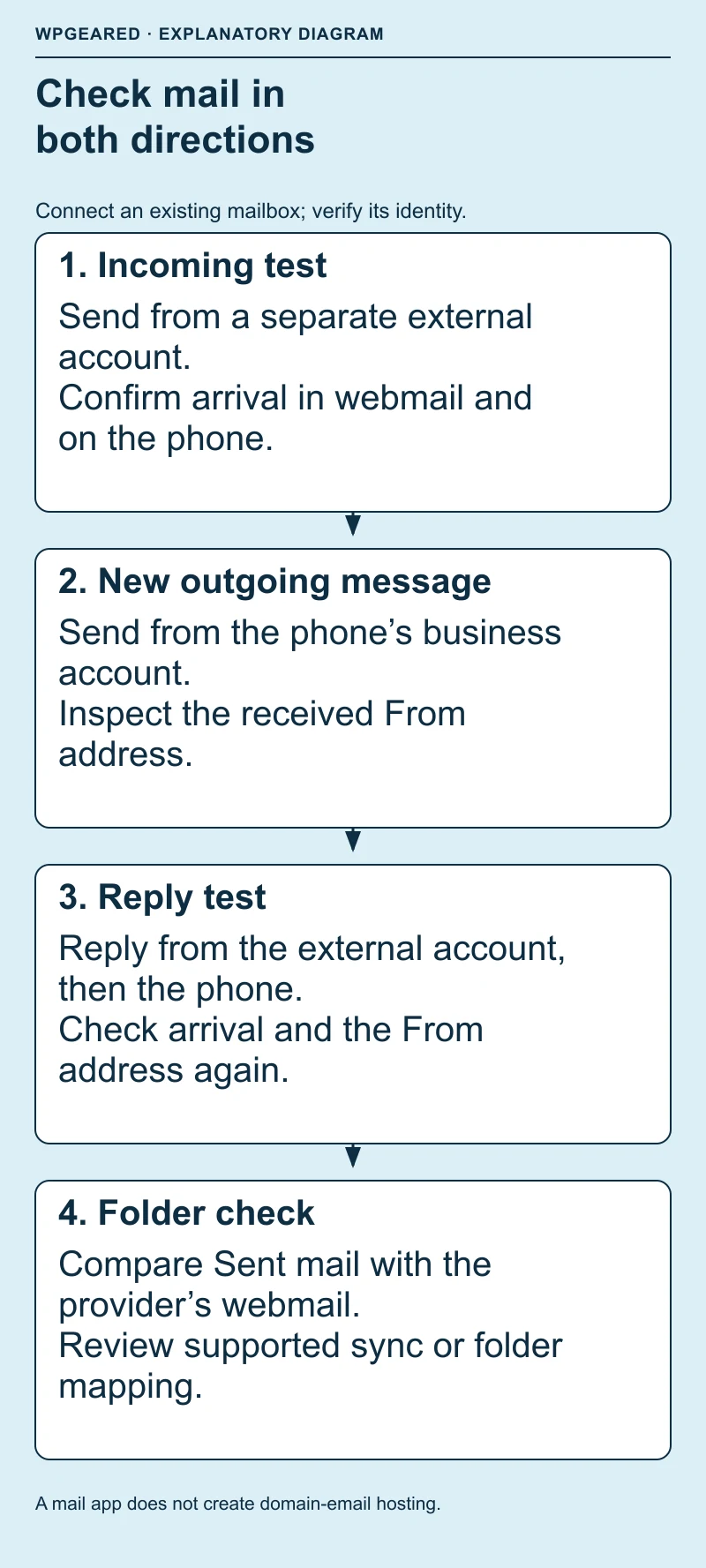
Use a separate external account and a subject you can recognize, such as “Business mailbox setup check.” Avoid confidential content while you are checking the configuration.
First send a message from the external account to your business address. Confirm it appears in webmail and on the phone. If it reaches webmail but not the phone, investigate the device's incoming connection rather than changing domain mail routing.
Next compose a new message on the phone from the business mailbox. Send it to the external account and inspect the received From address. It should show the intended business address, not a personal address selected by the app.
Reply to that message from the external account and confirm the reply arrives. Then reply from the phone and check its From address again. This catches a configuration that handles new messages correctly but replies through another account.
Compare the phone's Sent folder with the provider's webmail. If messages are not appearing where expected, check the account's supported folder mapping or synchronization settings with the provider. Do not delete folders just to make the two views look alike.
Troubleshoot the failing connection
| Symptom | What to check first |
|---|---|
| Webmail also rejects the login | Confirm the mailbox exists and reset its credentials through the provider if necessary. |
| Webmail receives mail, phone does not | Check IMAP hostname, full username, authentication and encryption. |
| Incoming works, outgoing fails | Check SMTP authentication, hostname, port and required encryption separately. |
| Sign-in stops after a password change | Update the device's stored credentials; follow the provider's app-password or sign-in requirements. |
| A certificate warning appears | Confirm the server hostname and certificate with the provider; keep encryption and verification enabled. |
| Replies use a personal address | Select the business account and inspect the From field before sending. |
| Mail arrives only after opening the app | Review the account's supported synchronization or fetch settings. |
For iPhone accounts that do not support push, Apple documents a fetch schedule. A successful manual refresh and a delayed background fetch are different problems. Checked November 2026.
If you need help, tell the provider which test failed, the error wording and the app you used. Keep passwords, security codes and recovery information out of screenshots.
Gmail's POP-import change is a separate issue
Google's Gmailify and POP notice, checked November 2026, says new users are no longer supported after Q1 2026 and existing users can continue until January 2027. That concerns third-party POP fetching into Gmail and Gmailify.
It does not mean you must abandon the Gmail mobile app's IMAP connection to an existing mailbox. Adding the mailbox connects the app to it; your existing provider still hosts the mailbox.
Remove or reconnect the account safely
Before removing a phone account, confirm that you can still access the mailbox through webmail and that important messages are present at the provider. Record the settings you will need to reconnect.
Apple explains that removing an account from the device does not cancel it with the provider. Take care to distinguish removing that device connection from deleting messages or closing the mailbox service itself.
If ordinary mailbox messages work but your blog's contact-form messages do not arrive, investigate WordPress SMTP delivery separately. Re-adding the phone account will not configure WordPress's mail transport.