Kadence hooks and Hooked Elements: where to put a shared notice
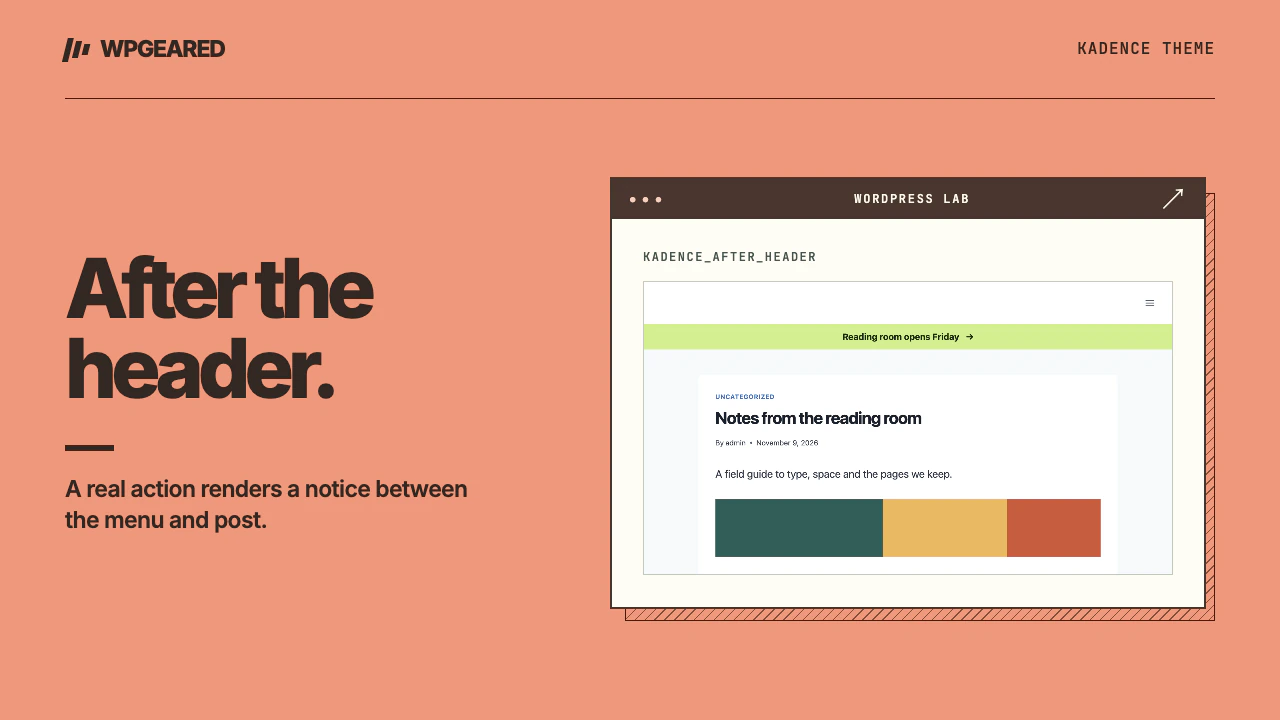
Kadence hooks are named points where the theme lets WordPress run your code. Use a hook when content belongs at a theme location across several pages. Use a block when it belongs to one author's page, or a Hooked Element when an editor needs to manage shared content visually.
How Kadence hooks fit around the header
Open the theme's hook reference and locate the header actions. When Kadence reaches the action named kadence_after_header, WordPress runs callbacks attached with add_action(). That puts their output after the theme header. It does not put an item inside the primary menu or inside the text of the post.
This distinction matters when a designer asks for a “header banner.” A new navigation item belongs in the menu. A search control or logo belongs in the Kadence header builder. A full-width editorial notice between the header and the page title is a candidate for a hook. A promotion visible only in one article is usually easiest to keep beside the text it qualifies. Sketch the intended position on both desktop and phone before choosing the tool.
A small PHP example you can remove safely
This example displays an “All articles” link below the header on individual posts. It sends visitors to the assigned posts page when there is one. When the homepage shows the latest posts it uses the home URL. A site with a static front page and no assigned posts page gets no link. That last case matters: linking an article reader to a sales homepage labeled “All articles” would be misleading.
On a staging copy, create a folder named kadence-post-index inside wp-content/plugins. Save the following as kadence-post-index.php in that folder, including the opening PHP tag. Activate its plugin entry. Keep filesystem access so that you can rename the plugin folder if a paste introduces a syntax error. Keep the parent theme's files intact.
<?php
/**
 * Plugin Name: Public post index link for Kadence
 */
add_action( 'kadence_after_header', function () {
    if ( ! is_singular( 'post' ) ) {
        return;
    }
    $posts_page = (int) get_option( 'page_for_posts' );
    $url = $posts_page ? get_permalink( $posts_page ) : home_url( '/' );
    if ( ! $posts_page && 'posts' !== get_option( 'show_on_front' ) ) {
        return;
    }
    if ( ! $url ) {
        return;
    }
    printf(
        '<p class="post-index-link"><a href="%s">%s</a></p>',
        esc_url( $url ),
        esc_html__( 'All articles', 'wpgeared-example' )
    );
} );
The conditional checks the current query before building the link. The destination passes through esc_url(), and the translated label passes through esc_html__(). If you later add an attribute containing user-editable text, use esc_attr() for that attribute. WordPress documents the callback and priority arguments in its add_action reference. A lower priority number runs earlier at the same hook. Changing priority cannot move output from after the header to inside it.
How to place a Kadence Hooked Element
Theme Kit Pro provides Hooked Elements (plan detail checked November 2026). Enable the add-on, open the Kadence Elements area under Appearance and create a Content Section. Put a short paragraph in it first. Choose where it should appear and specify which pages should show it. The official element placement guide illustrates placement and display settings.
Set one narrow display rule first, such as ordinary single posts. Publish on staging and open a matching post and a page that should be excluded. Once placement is correct, replace the marker with the real message. Check a signed-out window. If you have a page cache, clear the affected copy after changing a rule. An element that looks right when previewed in the editor may still have the wrong rules on a public page.
Hook, block or menu setting?
| Request | First choice | Why |
|---|---|---|
| Explain a diagram in one article | Paragraph or caption block | The explanation should travel with the content |
| Repeat a notice on a chosen set of templates | Hooked Element | One place controls copy, placement and display rules |
| Add a link only when a posts page exists | PHP callback | The output depends on the site's reading settings |
| Change the desktop navigation or a mega menu | Header and menu configuration | A callback below the header does not define a menu item or its keyboard behavior |
Troubleshoot missing or duplicate output
If nothing appears, confirm that Kadence is the active theme or parent theme and that the requested template actually renders its header. A builder's blank canvas can skip it. Verify the exact action name in the installed theme. Temporarily simplify the conditional on staging and inspect the HTML for your marker. If the markup exists but is invisible, examine CSS and responsive display settings. If it is absent, look at template selection, conditions and activation first.
If it appears twice, check for both a Hooked Element and a PHP snippet producing the same notice. Also check a child theme, a site plugin and any snippet manager. Disable one source at a time on staging. To remove the example, deactivate its plugin. To remove a visual element, take that element out of publication and confirm both a matching page and an excluded page.
For the broader choice between native editing and a page builder, see Kadence versus Elementor and the Kadence theme review. If you are changing themes, add each active hook and its intended position to the theme migration inventory. The content can outlive the change, while the old theme's action names may never fire again.