How to update PHP in WordPress safely
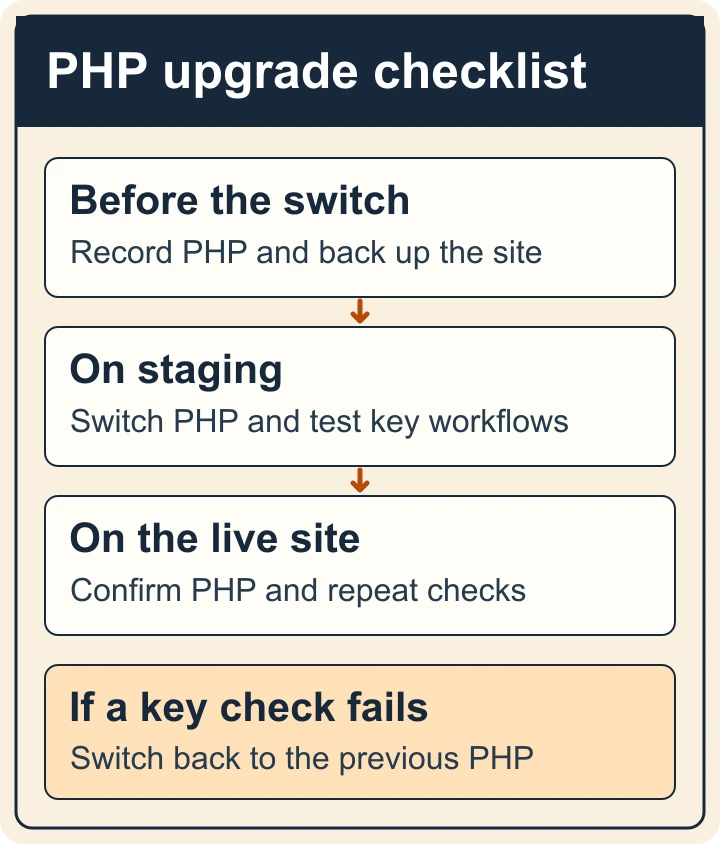
In WordPress admin, open Tools → Site Health → Info → Server and look for PHP version. Save full files and database backups, clone the site to independent staging, and test a branch supported by your WordPress version, plugins, theme, custom code and host. Change production only after you have a documented way to return to the previous branch. PHP runs at the server level, so WordPress admin usually cannot change it. WordPress: Site Health WordPress: update PHP WordPress Developer: server data
Check which PHP version WordPress is using
Open Tools → Site Health → Info → Server and record the PHP version. Record the WordPress version, database, active theme, plugins and relevant server details from their Info sections. Site Health shows the environment serving WordPress, but it cannot confirm every extension or custom integration. Identify who controls the runtime. That may be a host panel, managed hosting support or a server administrator. WordPress: Site Health WordPress: update PHP WordPress Developer: server data
Choose a candidate version from current evidence
Keep three decisions separate. WordPress.org currently recommends PHP 8.3 or newer for its hosting environment. Its legacy requirements and core compatibility matrix show what particular WordPress releases can run with. PHP.net shows whether a branch has active support, security fixes or has reached end of life. A legacy minimum describes compatibility. It does not tell you to remain on an old branch. WordPress.org: requirements WordPress Core: PHP compatibility WordPress Hosting: compatibility PHP.net: supported versions PHP.net: end of life
If your host offers PHP 8.4 or 8.5, test the branch that your exact WordPress release, plugins, theme, custom code and host support. On November 28, 2026, PHP.net showed 8.4 in active support through December 31, 2026, with security support through December 31, 2028. It showed 8.5 in active support through December 31, 2027, with security support through December 31, 2029. Recheck the live PHP table before you decide. PHP.net: supported versions
The core matrix is version-specific. For example, the matrix seen on November 28, 2026 marks WordPress 7.1 as compatible with PHP 8.4 and 8.5. That pairing covers core only. Read each vendor's PHP support notes and update WordPress, plugins and themes after creating your backup. A compatibility scanner can point to a question, but it can miss issues or flag false positives. WordPress Core: PHP compatibility WordPress: update PHP
Confirm the host and staging setup
Use the path that matches your access.
- With managed hosting, ask support to identify the site's current runtime, available candidate branches, required extensions and settings, and the documented rollback method.
- With cPanel, confirm that the domain has its own runtime setting and that staging uses a separate domain or runtime where the host allows it.
- With a custom server, ask the administrator how the virtual host, PHP-FPM pool and effective version are selected.
Ask the host to confirm that changing staging PHP leaves the live domain unchanged. Keep staging's database and uploads separate from production. If you need help creating a copy, How to Create a WordPress Staging Site Manually in cPanel covers one cPanel workflow. Check your host's process because controls differ. WordPress: update PHP cPanel: MultiPHP Manager cPanel: PHP inheritance WordPress Hosting: server environment
Back up files and the database
Before changing anything, save a known-good copy of WordPress files, uploads and configuration as appropriate, plus a database export. Confirm that you can access both backups and record their time. A database export alone is not a full site backup because it does not contain files. WordPress documents restoring files before the database when a full restore is required. WordPress Developer: backups
Treat database restoration as a separate, higher-risk decision. If visitors create posts, orders, form entries or settings after the backup, restoring the old database can remove those newer records. A PHP runtime rollback usually comes first when the host supports it. Do not restore a stale database simply because a PHP change produced an error. WordPress: update PHP WordPress Developer: database backups
Record current site behavior
Run this checklist on production and write down the expected result for each item. Use the site's existing workflows and approved low-risk checks. Do not create payment or test orders in production.
- Record the current PHP and WordPress versions.
- Record the active theme, plugins and business integrations.
- Confirm who controls the runtime and whether staging is independent.
- Confirm candidate support from PHP.net, the WordPress core matrix and vendors.
- Create and verify access to both files and database backups.
- Open an anonymous page and a published post.
- Sign in, open the editor and upload a test image.
- Submit a form and check its notification path when the site uses forms.
- Check search, redirects, analytics and scheduled tasks when present.
- Check existing checkout, booking and other integrations without creating a payment or test order. Keep payment tests for staging.
Keep the results so you can compare them with staging and production after the change. WordPress: Site Health
Test the candidate on staging
Clone production to staging and test the fresh clone on its current PHP branch first. Establish a working reference when possible. Apply necessary compatible core, plugin, theme or custom-code updates in staging, read vendor guidance for warnings, then repeat the checks. Then switch to the candidate PHP branch and repeat the checks. A successful dashboard load is a small part of the test. Check the visitor path, login, editing, media, forms, email, scheduled work and business workflows that matter to this site. For checkout, use the payment gateway's sandbox or test mode. Check whether test orders trigger customer notifications, webhooks, fulfillment, stock changes or other integrations. Disconnect or isolate those side effects before testing. WooCommerce: testing orders
A completed local test gives a limited example. On November 28, 2026, WordPress 7.1.5 used the same files and local MariaDB database while a loopback server ran PHP 8.4.28, then PHP 8.5.12, then PHP 8.4.28 again. Across the three runs, 15 checks passed. Each run checked the homepage, a published post, identical bytes for a test image, administrator sign-in and the PHP version shown in Site Health. This disposable switch-and-return check did not cover cPanel, production traffic, third-party plugins, email, checkout or scheduled jobs. WordPress.org: releases
Change PHP in cPanel
In a cPanel example, open MultiPHP Manager, select the exact production domain, choose the host-provided PHP Version, and click Apply. Verify the effective version in Site Health or the host's approved check. Available choices depend on what the host installed and exposed. If the selector says Inherit, the domain may follow .htaccess, document-root or system settings. PHP-FPM and shared document roots can affect related domains. Ask the host when the domain, version or inheritance behavior is unclear. cPanel: MultiPHP Manager cPanel: PHP inheritance
Use the managed-host path when there is no PHP menu
Send support the exact domain, current PHP version, candidate branch, staging result, requested maintenance window and rollback question. Ask them to confirm the effective runtime after the switch, required extensions and settings, and the version they can restore if the site fails. Hosts can restrict available versions and self-service rollback. Do not add arbitrary version strings to WordPress files or edit WordPress configuration to change a server runtime. WordPress: update PHP cPanel: MultiPHP Manager WordPress Hosting: server environment
Confirm the live site and roll back safely
After production changes, verify Site Health and repeat the same smoke tests and approved low-risk checks. Check forms, existing notification paths, scheduled tasks, analytics and other workflows already approved for production. Keep payment and test-order checks in staging with the gateway sandbox or test mode, including notification and fulfillment side effects. If a fatal plugin or theme error appears, WordPress Recovery Mode may pause the faulty component for an administrator session and send a recovery link. Recovery Mode cannot cover every cron failure, integration failure or host outage. Use logs in staging or a secured temporary diagnostic workflow, keep errors hidden from visitors, and remove or protect diagnostic settings afterward. WordPress: Recovery Mode WordPress Developer: debugging WooCommerce: testing orders
If the site fails, return the PHP runtime to the documented previous branch first when the host supports that action. Preserve current financial and order records while you investigate. Then compare the failed component with the staging result and contact its vendor or host. Restore files or the database only when the evidence requires it and you understand which newer content could be lost. WordPress: update PHP WordPress Developer: backups
If you cannot isolate the failure safely, WordPress repair and technical support is an optional escalation path.