A WordPress site says “Hacked by …”: what to do after a defacement
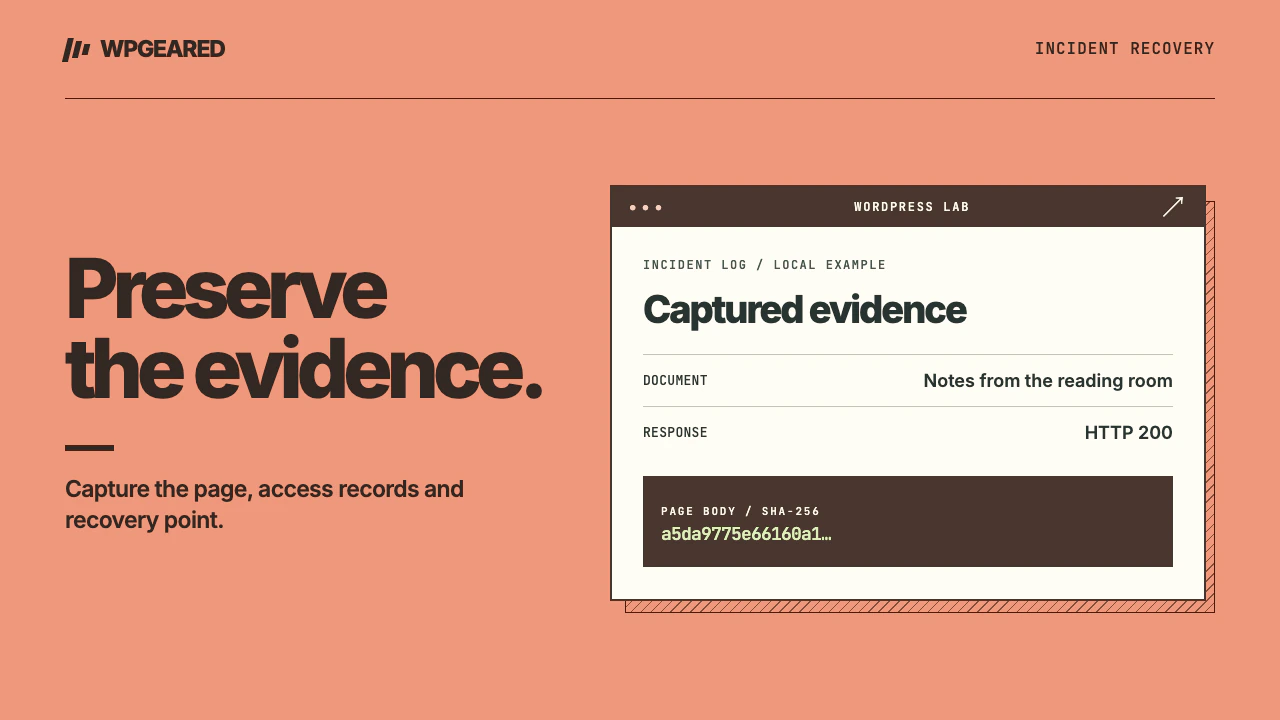
If your WordPress homepage suddenly says “Hacked by …”, treat the replacement page as evidence of unauthorized access. Preserve a copy, contain public exposure and recover from a trusted source. Deleting the message alone leaves the access that allowed it unresolved.
What does a “Hacked by Mr Green” or similar message prove?
A name on the page tells you what visitors saw. It does not identify who accessed the site, how they got in or how much was changed. The same text can be copied by unrelated people. Preserve the exact words, the URL, the time and the version of the page seen by a signed-out visitor. Search for the name in your records only as one clue. The investigation should follow the affected accounts, files and requests.
First establish the boundary. Does one article have a changed title? Does every page show the same replacement? Do you see an unfamiliar site only on a particular device or network? Those observations point toward different layers: content in the database, a shared template, cached output or a problem outside WordPress. Ask the host to corroborate the response at the origin. Use a trusted device and avoid interacting with links or downloads on the defaced page.
What to do in the first hour
- Record what happened. Capture the page, timestamp with time zone, response status and affected URLs. Save recent alerts and the last known good time. If you have a hosting incident contact, ask for preservation of access, application and authentication logs before rotation removes them.
- Protect visitors. Ask the host to isolate the compromised installation or serve a temporary maintenance response from a clean layer. Keep administrative access limited to people involved in recovery. A maintenance plugin inside an untrusted WordPress install may not intercept the compromised response.
- Preserve a private snapshot. Copy the files and database before cleanup and label the snapshot as compromised. Keep it separate from clean backups, off the public web root. The snapshot helps explain what happened and recover legitimate changes made after the last clean backup.
- Secure the accounts controlling recovery. From a trusted device verify access to hosting, email, registrar and site administration. Revoke unexpected accounts and active sessions, enable multifactor authentication where available and coordinate credential rotation with the host. Secrets entered into an installation still controlled by an attacker may need to be changed again after cleanup.
- Assign one recovery owner. Record who can restore the database, who will check orders and who can reopen the site. Independent restorations performed at different times can overwrite new business records or restore a compromised file over a clean one.
The WordPress hacked-site recovery FAQ covers documentation, resetting access and reinstalling trusted components. Keep the original evidence even if the message disappears when a cache expires.
Decide what can be safely restored
Identify the latest backup from before the earliest evidence of compromise. A backup from before the banner appeared can still contain the original foothold. Restore into an isolated environment and verify it before reconnecting traffic. For a store or membership site, inventory orders, registrations and uploads created after that backup. Plan how to reconcile them from trusted records without copying a compromised database wholesale.
Compare WordPress core against official release checksums. With WP-CLI on a trusted account in the isolated copy, the read-only command wp core verify-checksums checks distributed core files for the installed release. Its official reference explains version and locale handling. An unexplained mismatch requires investigation. A clean result still leaves themes, plugins, uploads, configuration, users and database content to inspect.
Reinstall core, themes and plugins from known-good packages. Preserve legitimate custom code only after comparing it with version control or a trusted release. Replacing files over an existing directory can leave extra files behind. Ask the host to check unexpected executable files, must-use plugins, drop-ins, scheduled tasks, redirects, server configuration and accounts on other sites sharing the same hosting identity. A clean homepage says little about those paths.
Check the database and the route that let access in
Review admin accounts and privileges, application access, newly created content and unexpected changes to theme settings, widgets or options. An attacker may alter a single option without modifying a core PHP file. Correlate changes with server logs and known maintenance activity. A legitimate deployment at the same time can explain some file changes, but it cannot explain an unauthorized admin account.
Determine which control failed far enough to make recurrence less likely. Examples include an exposed account, a vulnerable plugin version or a compromised hosting login. Remove unsupported components, patch affected software and review permissions. Rotate application and database secrets that may have been exposed, taking care to update clean dependent services. If customer data or payment workflows may be involved, preserve the evidence and bring the responsible business and incident professionals into the response.
When is it safe to reopen?
On the restored copy, open the homepage, a deep article, a deliberately missing URL and any affected checkout or account flow. Test signed out, on a phone and from a clean browser profile. Inspect page titles, navigation destinations and response headers. Check the origin and the cached public response separately. Purge compromised cached pages after the clean origin is ready, then repeat the same checks.
Review verified owners and the Security Issues report in Search Console. If Google identified a security problem, follow its Security Issues report guidance and request a review once the examples and underlying issue are resolved. Restoring a homepage does not immediately replace every search snippet. Watch subsequent requests and alerts for the original indicators. Preserve logs long enough to investigate a repeat.
If the visible site looks normal but search results advertise unrelated products, use the Japanese keyword hack guide for that different symptom. If you cannot establish a trusted restore point or control the affected hosting account, the WordPress malware removal service is the appropriate place to arrange hands-on recovery.