ACF Blocks tutorial: register and render an editorial note
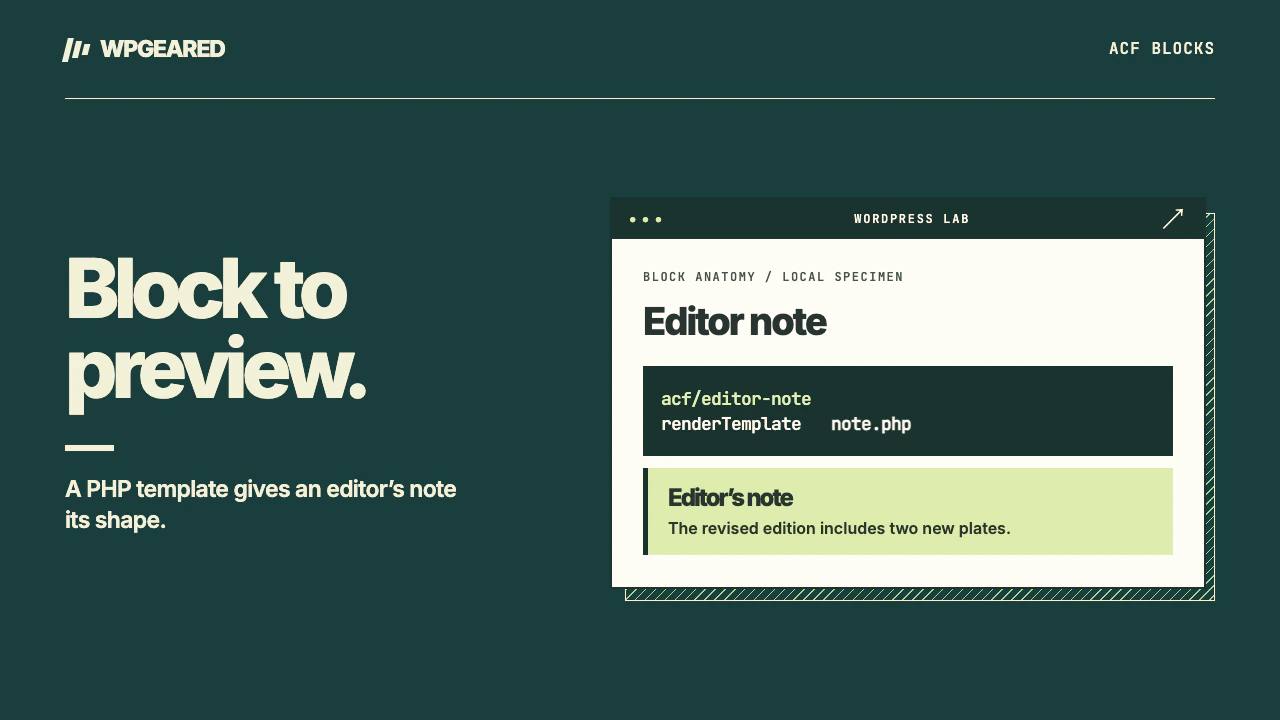
ACF Blocks lets a developer register a WordPress block and render it with PHP while editors fill in an ACF field group. Use it when an editor needs a repeatable component with a predictable design. For a paragraph with a different background color, a core Group block or pattern is cheaper to maintain.
ACF Blocks tutorial: the files and versions
This example builds an “Editor note” block. It stores one text value and shows a prompt only inside an empty editor preview. ACF Blocks is an ACF Pro feature (checked November 2026). Its version 3 documentation specifies ACF Pro 6.6 or later. Use a staging site with a compatible licensed installation before giving editors the component.
There are two version numbers in the metadata. WordPress reads the top-level apiVersion. ACF reads acf.blockVersion. Setting the first to 3 does not select version 3 of ACF Blocks. Version 3 keeps the rendered preview visible while fields are edited in the sidebar or expanded panel. An older tutorial telling you to switch the whole block into Edit mode describes a different interface.
Register the block from a small site plugin
Create wp-content/plugins/site-editor-note/site-editor-note.php. Put the registration code below in that file. Inside the same plugin folder, create blocks/editor-note/ to hold block.json and note.php. A plugin is a useful home for content that editors should keep when a theme changes.
<?php
/**
 * Plugin Name: Site Editor Note
 */
add_action( 'init', function () {
    if ( function_exists( 'acf_register_block_type' ) ) {
        register_block_type( __DIR__ . '/blocks/editor-note' );
    }
} );
The guard prevents registering a nonfunctional field-based block when ACF Pro's block API is unavailable. WordPress reads the metadata directory on initialization. If the block is missing from the inserter, first check that the site plugin and ACF Pro are active. Then check the path relative to the plugin file and the JSON syntax. Renaming a registered block changes the name saved in post content, so choose it before editors start publishing.
Define block.json and attach the field group
{
  "apiVersion": 3,
  "name": "acf/editor-note",
  "title": "Editor note",
  "category": "text",
  "icon": "edit",
  "acf": {
    "blockVersion": 3,
    "renderTemplate": "note.php"
  },
  "supports": { "html": false }
}
The ACF block.json reference covers the acf object and the relative template path. WordPress documents core metadata such as name, title, category and API version in its block metadata reference. Keep the machine name stable even if the label shown to editors later changes.
Activate the site plugin. In ACF, create a field group called “Editor note fields.” Add a Text field labeled “Note text,” named note_text. Set the location rule to Block is equal to Editor note and save the group. A rule for “Post type is equal to Post” attaches the field to the post, which can make multiple block instances show the same value or leave the block sidebar empty. The group belongs to each block instance.
Render the value and preview
Save this as blocks/editor-note/note.php. Plain text uses esc_html(). The editor's empty message belongs in the preview only. A blank saved block should not add a misleading message to the published page.
<?php
$message = get_field( 'note_text' );
if ( is_string( $message ) && '' !== trim( $message ) ) : ?>
    <aside class="editor-note">
        <p><?php echo esc_html( $message ); ?></p>
    </aside>
<?php elseif ( ! empty( $is_preview ) ) : ?>
    <p><?php echo esc_html__( 'Add note text in the block settings.', 'editor-note' ); ?></p>
<?php endif; ?>
Use a descriptive class to style the note in your site stylesheet. Keep the actual words readable if the stylesheet fails. If you extend the example to accept a link, choose its return format first, then escape the destination with esc_url() and the label with esc_html(). Allowing rich text is a separate content decision and needs an appropriate HTML allowlist.
Check two instances and one empty preview
Insert an Editor note in a new post on staging. Before entering anything, look for the preview prompt. Fill it with “Registration closes Friday,” then insert a second instance with different wording. Save and reload the editor. Two independent notes verify much more than one correct-looking screenshot. Open the public post signed out, clear the second note, save again and check that the public page has neither the editor prompt nor an empty panel.
Include an ampersand, a quotation mark and text that looks like an HTML tag in the trial. The template should display the characters as text. If the first note changes whenever the second one changes, check field group location, template scope and any explicit post ID in the field call. If both disappear after switching themes, confirm that the registration actually lives in the site plugin.
When to choose an ordinary block pattern instead
Use a pattern when a group of existing blocks already expresses the design and editors need to move or replace individual parts. Use an ACF block when the fields and output should stay consistent across editors and posts. A table of variable measurements may be easier as an ACF Table Field. Sites that translate block content also need to choose ACF and WPML field preferences. For a component that must support an existing publishing workflow, custom WordPress block development covers its registration, output and upgrade path.