How to reduce unused CSS in WordPress and fix PageSpeed warnings
To reduce unused CSS in WordPress, find the stylesheet, identify which component loads it and test whether that component is needed on the reported page. Do the same for unused JavaScript before changing its delivery. A PageSpeed warning describes what one page did during one run. It cannot tell you which rule operates a mobile menu that the run never opened.
How to reduce unused CSS in WordPress without breaking another page
Start with the exact URL and device class in the report. Save the results and take a screenshot of the header, the largest visible element and a representative interactive section. Pick another URL where the suspected stylesheet is likely to be needed. If the file belongs to a store, compare a blog post with a product detail page. If it belongs to a form plugin, include a page that actually contains the form.
Use Chrome's Coverage panel to record a reload, then interact while recording. Open the mobile menu, expand an accordion, trigger a validation error on staging and change a product option. CSS counted as unused before interaction may now be in use. Repeat at another viewport because a desktop-only media rule can look dead on a phone. Coverage is a diagnostic sample, not a safe list of lines to delete.
Map the URL to its owner. A style inside a plugin directory may have been combined into a cache file. Use the request initiator, page source and optimization plugin settings to find the original. Prefer a supported per-page asset setting or conditionally loading a component where it is actually used. Keep the original file intact and record the page type where it should still load. Editing a minified plugin file makes the change hard to review and easy to lose on update.
Reduce unused JavaScript by following the dependency
A large bundle may include code for several widgets even though the page uses one. Before delaying or removing it, identify what starts it and what depends on it. A script responsible for the menu may also provide event handlers for a form or a product option. If another script expects it to exist at initialization time, changing load order can create an error that happens only on a cold visit.
On a staging copy, disable the unused widget or integration first. Compare network requests and the browser console. If the file still loads on every page, inspect its enqueue conditions. If a third-party chat script is the main cost, ask whether every template needs chat immediately or whether it can be initialized after an appropriate interaction. Respect consent and verify that people using a keyboard can still reach the feature.
For Elementor pages, identify the widget or embed before changing optimization settings globally. The Elementor slow-loading guide separates front-end resources from a slow editing session. Those are different tests. Do not optimize an authenticated editor based on a public mobile PageSpeed report.
Which render-blocking resources matter?
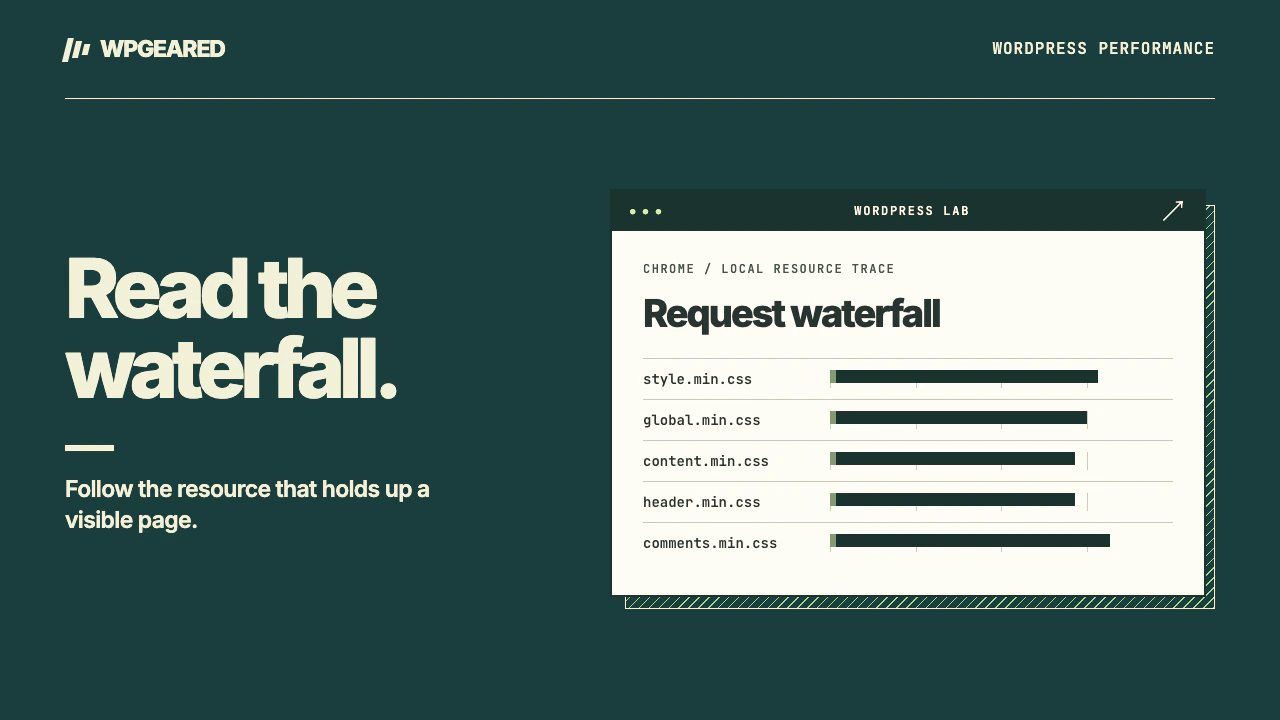
A stylesheet needed for the first visible layout can delay paint, but removing or deferring it blindly can show an unstyled page that jumps when styles arrive. Follow the critical sequence in the waterfall. Does the HTML document arrive late? Is a font stylesheet discovered only after another stylesheet? Does the visible hero wait for JavaScript to insert its image? Choose the earliest avoidable delay on that path.
Google's performance insights reference explains current Lighthouse and DevTools diagnostics, including render-blocking requests and LCP discovery. Report labels can change between tool versions. Preserve the tested URL, date and resource names rather than treating an old label as a permanent setting you must enable.
If a tool generates critical CSS, examine mobile, desktop and pages with a cookie notice, product variation or translated menu. CSS collected for one homepage may not contain the styles required by an article, form error or checkout. Check a first visit with an empty cache and another after navigation. Keep the ability to disable the optimization and purge the generated files.
Diagnose WordPress LCP from the element back to the server
Largest Contentful Paint (LCP) measures when the largest eligible visible content element paints. Inspect the element in the report. It may be an image or text, and it can differ between desktop and mobile. Work backward through document response, resource discovery, download and rendering. Google's LCP optimization guide describes these components.
If the document is slow to arrive, optimizing an already small image will not recover that time. If the hero request starts late, look at lazy loading, CSS background discovery and JavaScript-created markup. If the request starts early but transfers far more pixels than the viewport needs, inspect responsive image sizes and compression. If the bytes arrive early but the element paints late, inspect scripts, animations or hidden-until-ready states. Don't preload a guessed desktop hero across the whole site. It may compete with the resource mobile visitors actually need.
Retest the warning and the business workflow
Change one suspected cause at a time. Run the same URL several times under consistent conditions, then inspect another representative template. Compare LCP, actual resource sizes, layout stability and the interaction the owner cares about. A menu that opens only on the second click, or a form that submits twice after deferred scripts initialize, is a failed optimization even if the score rises.
Use the WordPress speed test for a starting report and the general WordPress speed guide when the issue extends beyond the named warning. Keep the URL, waterfall and a description of the affected feature if you need WordPress performance work.