Elementor slow loading? Separate the editor from the public page
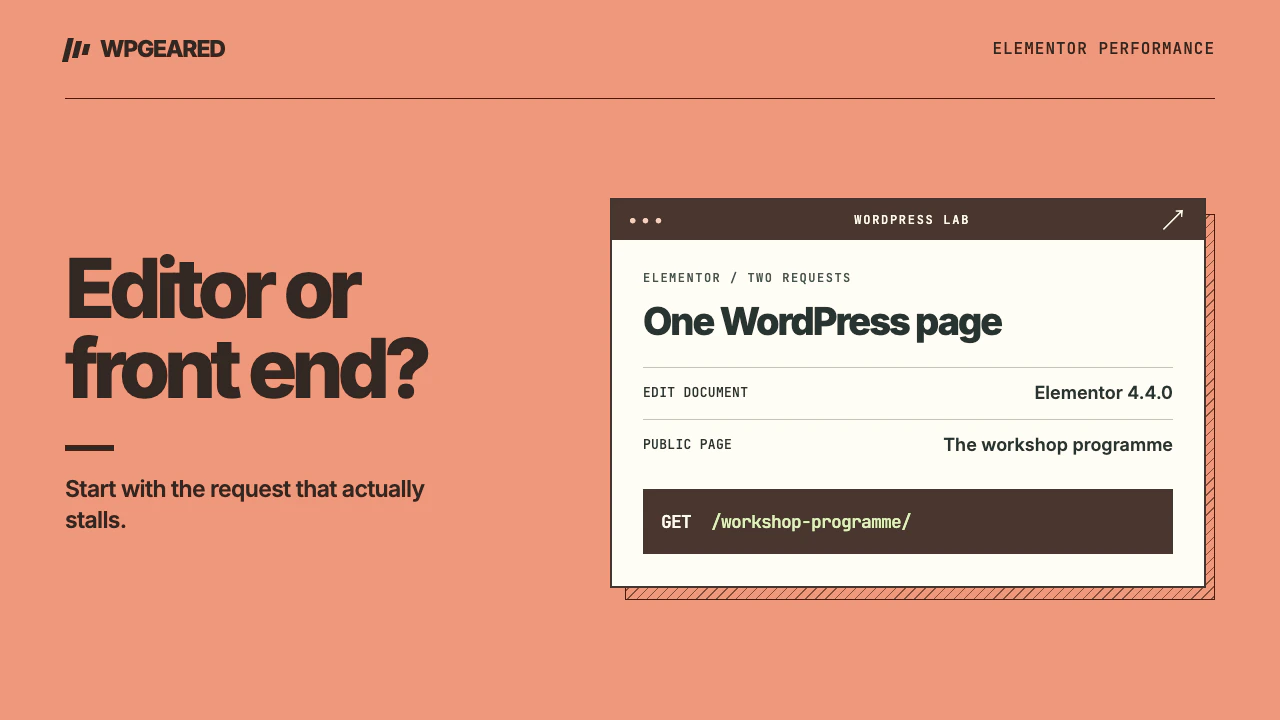
If Elementor is slow, first open the published URL signed out and then open the same page in the editor. A slow editing session and a slow page for visitors have different causes. Time the part that fails before installing a cache plugin or rebuilding the design.
Elementor slow loading: which operation actually stalls?
Write down the URL, account role, browser and the action that feels slow. “The editor takes a long time to open,” “typing has a delay,” “Update never finishes” and “the hero appears late on a phone” describe four different problems. Use an ordinary WordPress post with similar content as a control. If opening the Plugins screen also stalls, start with the slow WordPress admin guide.
| Symptom | First piece of evidence | Next experiment |
|---|---|---|
| Editor takes a long time to start | Network timing of the initial document and editor requests | Reopen a small page in a fresh browser profile |
| Dragging or typing is jerky | Browser performance trace during that interaction | Duplicate the page and simplify one large section |
| Saving hangs or fails | Status code and duration of the save request | Check server logs at that timestamp |
| Public page stays blank or the main image arrives late | Mobile network waterfall and largest visible element | Change the single resource or dependency delaying that element |
A page cache can make the signed-out page quick while an authenticated editing request remains slow. Conversely, an editor with many controls can be slow to open while a cached visitor page is fine. Record both observations so a hosting provider or developer can reproduce the correct issue.
Diagnose a slow Elementor editor
Open the affected screen with browser developer tools recording Network. Reload once. Find the first long request the editor depends on and check its status. A quick error response followed by repeated retries behaves differently from a long wait for the first byte. Avoid sharing raw cookies, authorization headers or private form data when sending a trace.
Try another browser profile without extensions. If that helps, reintroduce extensions individually. If a single document causes trouble, duplicate it on staging and remove half the editable sections from the copy. Retest. Narrow it to one widget, nested section or external embed before changing global settings. A video or third-party widget that stalls the preview may be unrelated to the rest of the builder.
Use Elementor Safe Mode to isolate editor conflicts. It supplies a simplified editor environment for the current troubleshooting session. If the normal editor stalls and Safe Mode works, compare the active theme, add-ons and experimental settings on staging. Enable them in groups, then narrow the failing group. A successful Safe Mode run does not identify the culprit on its own. If it still fails, follow Elementor's slow editor troubleshooting guide and inspect PHP errors or resource exhaustion with the host.
What if editing is fine but the published page is slow?
In a signed-out mobile browser, record the network waterfall with a consistent cache state. Identify what painted the largest visible item. If it is a background image inside a hero container, look for when the browser first discovers its URL. If the image starts late, simply compressing it may leave most of the delay intact. If it starts promptly but downloads slowly, compare its intrinsic dimensions with its displayed size and the image candidate actually selected on mobile.
For a heading, inspect font loading and visibility. For a gallery or slider, compare a staging copy displaying one representative static image in the same space. Does the visitor see useful content before the carousel code finishes? Avoid removing a feature based only on its filename. A script that costs time may also operate the mobile menu or a contact form. Check the workflow it supplies after each change.
If the report names unused styles or delayed LCP, follow the PageSpeed warning walkthrough to locate the specific request. Inspect the page structure in Elementor's Navigator or structure panel. Several nested containers may impose redundant layout and style work, but counting containers alone does not diagnose a slow load. Simplify one repeated card or section, preserving reading order and responsive behavior. Compare the same URL, device settings and interactions. Elementor's front-end speed guide covers common sources of excessive work.
Is the server or an external service responsible?
If the HTML document spends most of its time waiting before it receives any bytes, look at the server response and cache status. A signed-in preview often takes a different path from a logged-out request. Ask the host for the request trace and PHP worker queue around the recorded time. Increasing a PHP memory limit helps only when memory is the constraint. It does not fix a failing outbound call that waits for a timeout.
If video, chat or analytics dominates the waterfall, compare a staging copy with that one integration removed. Test consent behavior and interaction when the integration loads again. Avoid turning on several delay, combine or minification features together. You need to know which change caused a broken dropdown or an empty form. Use one owner for each optimization and keep a note of the previous setting.
Verify the fix where the problem occurred
Measure a cold public visit and a repeat visit under the same network conditions. In the editor, reopen the same document, make a harmless change on staging and save it. Inspect the published page on a phone. Open the menu, follow the primary link and exercise any form safely on staging. If the improvement is smaller than natural run-to-run variation, keep investigating rather than publishing a speed claim.
When the problem spans multiple templates, look at the general WordPress speed diagnosis. For questions about keeping Kadence as the theme while editing selected pages in Elementor, see Kadence vs Elementor. The WordPress speed service is for sites that need someone to trace the bottleneck across builder, hosting and front-end resources.