How to migrate from Wix to WordPress, step by step
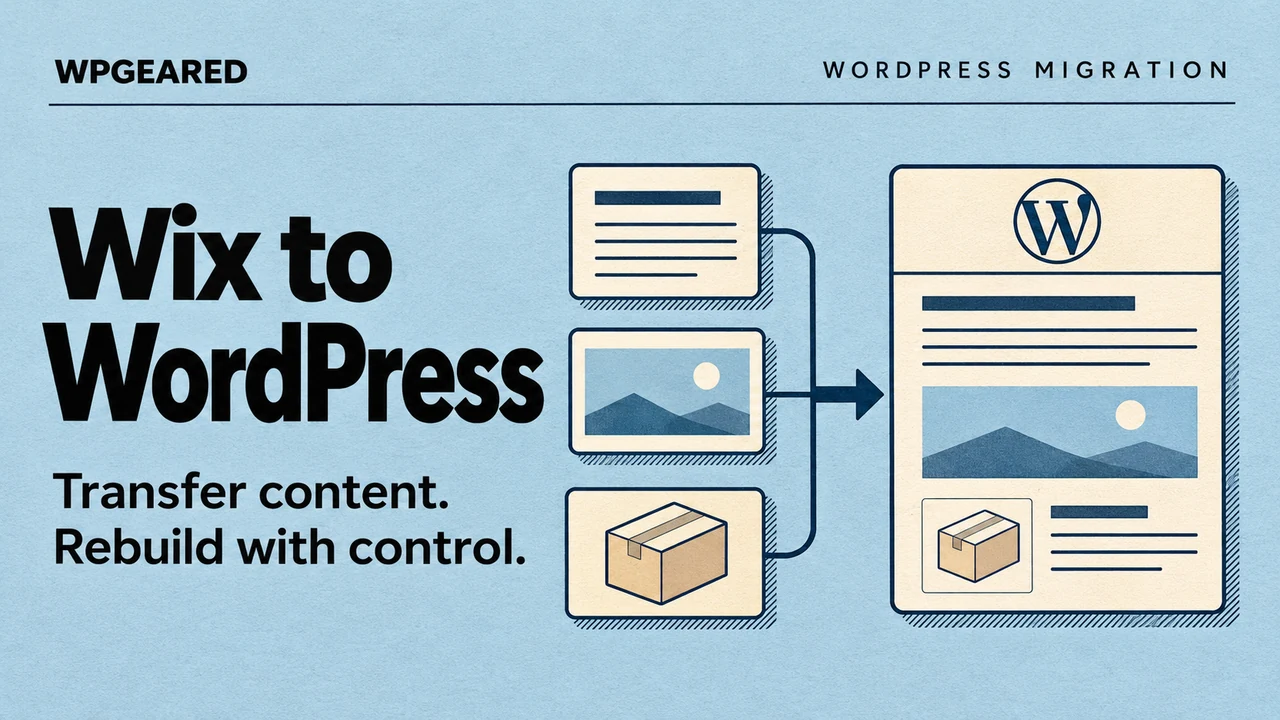
To migrate Wix to WordPress, plan for a content transfer plus a rebuild. Wix does not offer a full-site export that recreates your site in WordPress. Wix says its sites must run on Wix servers because they depend on Wix technology and services (Wix export guidance, checked November 2026). You can move content through supported export paths, but you will rebuild pages, features and integrations, map the URLs, and change the domain destination.
The shortest working path is inventory, staging, a small content pilot, rebuilds, redirects, domain cutover and verification. Use the migration hub to map the work before choosing a host or theme.
Step 1. Inventory the Wix site before you migrate Wix to WordPress
Start a spreadsheet with one row for every public page and important business record. Include old campaigns, downloads, contact pages, individual posts, product pages and booking links, even when they are not in the main menu.
| Item | Record before moving |
|---|---|
| Pages | URL, title, headings, copy, forms, files and main action |
| Blog posts | URL, title, date, author, categories, body, images and links |
| Images and files | Original file, caption, alt text, PDF or download URL, usage rights |
| Forms | Fields, required states, consent, recipient, confirmation and spam controls |
| Products | SKU, variants, price, stock, tax, shipping and product images |
| Members and bookings | Accounts, services, availability, bookings and related communications |
| Domain and email | Registrar, DNS records, mail provider, subdomains and verification records |
Open https://your-domain.example/sitemap.xml in a browser and save the address. Wix generates a sitemap index that can point to page, blog, store, booking and member sitemaps. Inspect each child sitemap and compare it with your spreadsheet. It is a URL inventory, not a copy of your content. Wix Help Center labels can change; its sitemap guidance was checked in November 2026 (Wix sitemap documentation). Record useful URLs from Search Console, analytics and old emails, then keep Wix active while you recover content and records.
Step 2. Set up WordPress on a protected staging site
Create a private WordPress copy before changing the public domain. The staging guide covers one cPanel route. Protect staging with a password or host control, keep it out of search results, enable HTTPS, set the intended permalink style and make a restorable backup.
Choose a theme after you understand the content. Move one ordinary page, one blog post and one product as a pilot. Check headings, links, images, forms and editing controls. Record what exists before retrying an import so you do not create duplicates.
Step 3. Move blog posts with the Wix RSS feed
The usual Wix blog feed path is https://your-domain.example/blog-feed.xml. RSS is a blog-update feed. Open the address in a browser, save the XML file and count its items. Wix’s current RSS guidance says the feed provides up to 20 of the most recent posts and no category feeds (Wix RSS guidance, checked November 2026). Wix’s RSS explainer shows the path pattern (Wix blog RSS feed, checked November 2026). If the root path does not return XML, use the RSS button on your live Wix site to get its feed URL; if it is absent, follow Wix’s linked instructions to add one. Labels can change.
The feed may contain titles, dates, excerpts and image enclosures rather than complete body HTML. Older posts can be missing, images may still point to Wix, and embeds, columns or buttons may need repair.
On staging, use Tools → Import → RSS to install and run the WordPress RSS Importer with the saved XML file. Its WordPress.org listing, checked in November 2026, identifies version 0.3.2 and warns that it has not been tested with the latest three major WordPress releases. Treat it as a staging experiment, not a maintained converter: import the file into clean staging, inspect three to five representative posts and stop if it fails.
Compare titles, dates, authors, categories, paragraph breaks, internal links and duplicates. The importer does not move Wix pages, forms, store records, members, bookings or your image library. Recover posts outside the 20-item feed from Wix while you still have access, then add and format them manually.
Step 4. Bring images and files into the Media Library
Download original, rights-cleared images, PDFs and other files. Upload them to WordPress’s Media Library and update page and post references. Add useful alternative text and preserve informative captions. Check posts, galleries, backgrounds, responsive versions, buttons and downloads.
Do not leave the new site hotlinking static.wixstatic.com. An image that still loads from Wix keeps the migration dependent on the old account. In a private window, inspect actual image and file URLs rather than only the rendered page.
Step 5. Rebuild pages, forms and store content
Recreate Wix pages with WordPress blocks or templates. Wix themes, app behavior and custom widgets are not portable WordPress code, so rebuild the parts that matter and replace proprietary apps with supported WordPress features.
Rebuild forms with the same fields, required states, consent wording, spam protection, recipient and confirmation. Submit a staging form to a controlled mailbox and check the message, reply address, validation errors and failure state.
For physical Wix Stores products, use the current product CSV export documented by Wix (checked November 2026). Its current documentation says digital products are not included and places limits on export rows; product-page labels may change, so follow the live Help Center instructions (Wix product export, checked November 2026). Map a small sample into WooCommerce’s built-in product CSV importer, also checked November 2026. Match SKUs, variants, prices, stock, tax, shipping and image paths, then inspect the catalog. A product CSV is not an order-history migration; plan customers, subscriptions, payments, members, bookings and old orders separately.
Wix to WordPress migration plugins and tools
Plugins can copy only the record types they understand. The RSS Importer is a narrow, staging-only test for blog posts. It cannot convert a Wix design, apps, forms, bookings, members, domain, email setup or complete store.
Paid converters differ by connector and may still leave you with a rebuild and URL cleanup. Do not buy one until a documented sample matches your content. A generic RSS tool is still an RSS tool, not a Wix converter. The Weebly migration guide covers the same transfer-versus-rebuild decision for another hosted builder.
Step 6. Map old URLs to new URLs and add 301 redirects
Make a two-column map of every retained old URL and its exact new destination. Leave an unchanged URL serving its content when possible. For a permanent move, use a direct 301 redirect at the server, host or WordPress redirect layer. Avoid chains and homepage catch-alls. Google recommends a URL map, permanent redirects, a new sitemap and monitoring (Google Search Central, checked November 2026).
Preserve /post/slug paths where practical. Wix’s default blog pattern is /post/{post slug}, but a site may have customized its prefix, so trust your saved URL list (Wix blog URL documentation, checked November 2026). Map product pages, files, archives and important landing pages too.
If an old link contains #!, treat it as a special case on a very old site. The fragment after # is handled by the browser and is not sent in the HTTP request, so a server-side 301 cannot match the fragment alone (MDN fragment reference, checked November 2026). Test real examples and preserve the path before # where possible; do not assume Wix provides an automatic solution for every legacy link.
Step 7. Repoint or transfer the domain, then cut over
You can usually keep the same domain while changing where the website is hosted. DNS records direct web and mail traffic; pointing DNS and transferring the registrar are separate choices. If you point the domain, ask the new host for its A or CNAME records and follow Wix’s current external-site guidance (Wix domain pointing, checked November 2026). If the Wix-purchased domain is eligible for transfer, unlock it and request the authorization or EPP code; check transfer locks first (Wix domain transfer guidance, checked November 2026).
Before editing anything, save A, CNAME, MX, TXT, verification and subdomain records. MX records route mail; TXT records often carry mail-authentication and site-verification data. Email is separate from the website: preserve both, recreate them if the DNS provider changes, and test sending and receiving. A domain transfer does not automatically move a mailbox. A Wix-owned subdomain gives you less control than a custom domain you own, so check what the old account can redirect before closing it.
Reconcile final posts and orders, back up WordPress, prepare HTTPS and assign someone to make or reverse the web-DNS change. Change the web records only after the forms, products and redirects are ready, and leave mail records intact.
Step 8. Verify the live migration
Open representative old URLs and confirm each moved URL reaches the correct new page with one direct redirect; unchanged URLs should still return their intended content. Check copy, titles, canonicals, internal links, images, PDFs, forms, products, certificates and the primary hostname. Submit the new sitemap in Search Console and monitor indexing, old URL reports, crawl errors and server errors.
Remove staging-only noindex or access restrictions from production while keeping staging protected. Send every form from a controlled address and confirm mailbox delivery. Test a permitted store transaction, customer email and any rebuilt member or booking path. Rankings can move while Google recrawls; redirects reduce risk but cannot guarantee unchanged traffic.
Troubleshooting
- Images are missing: replace Wix URLs, including responsive
srcsetand backgrounds, with rights-cleared Media Library files. - The RSS feed stops early: Wix limits the feed to the 20 most recent posts. Recover older posts manually and reconcile the count.
- Imported posts look wrong: RSS may not contain full body HTML. Repair paragraphs, headings, embeds and links on staging.
- Rankings drop: check direct 301 mappings, canonicals, robots and index controls, the sitemap, internal links and server errors before assuming content was lost. Allow time for recrawling.
If you want someone to have it done for you, keep the inventory and URL map available so the rebuild starts with the facts your site depends on.