WordPress speculative loading: defaults, exclusions and a useful test
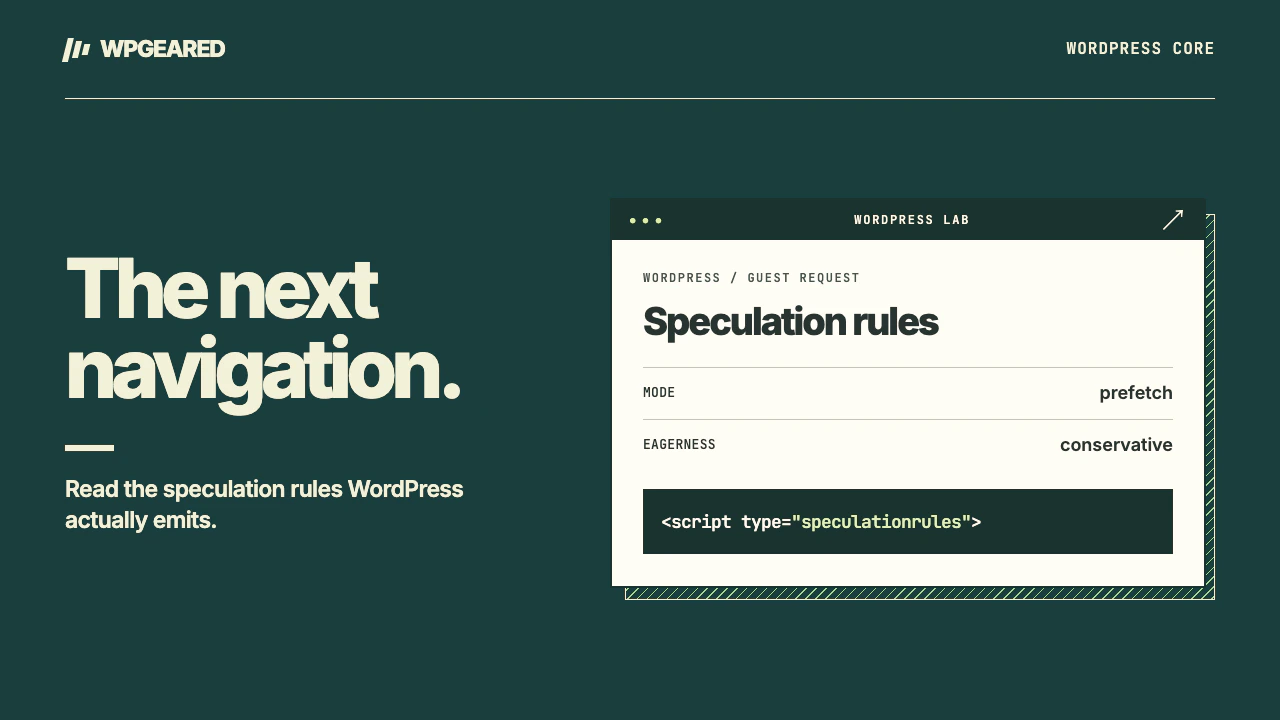
WordPress speculative loading lets a supporting browser prepare a likely next navigation before someone follows the link. WordPress 6.8 introduced core rules that default to conservative prefetching on the public site for signed-out visitors using pretty permalinks. If your first page is slow, find that page's bottleneck before tuning speculation for the second one.
What does WordPress speculative loading do by default?
WordPress describes eligible links in a script of type speculationrules. The browser decides whether to act on a hint. With prefetch, it can fetch a destination document ahead of navigation. Prerender can prepare substantially more of the destination and carries different implications for server work and scripts. Neither mode promises that the browser will load every matching link.
The WordPress 6.8 developer note documents the original defaults and filters. Conservative eagerness waits for a strong signal of intent, such as pressing a pointer on a link, instead of indiscriminately fetching every link on a long archive. This makes an ordinary hover a poor test of whether the default rules work. Browser support, settings and resource constraints also affect whether a candidate proceeds.
| Situation | Core behavior to expect | What to inspect |
|---|---|---|
| Signed-out visitor, pretty permalinks, standard configuration | Conservative prefetch rules | Page source and the browser's speculative loads panel |
| Logged-in editor | No core rules by default | Repeat in a signed-out window before debugging |
| Plain permalinks | No default core configuration | Check Settings → Permalinks without changing production URLs as a test |
| Plugin or host supplies a different configuration | Actual behavior may differ | Read the emitted JSON and hosting or plugin settings together |
Which WordPress version introduced which setting?
Version 6.8 added the core configuration filter and exclusions. Installing an extra plugin is unnecessary just to get that baseline. The optional Speculative Loading plugin exposes configuration and can use more aggressive behavior. Check its description before activating it on a busy production site. A new settings screen is not a prerequisite for core to emit rules.
WordPress 7.1 added host defaults through WP_SPECULATIVE_LOADING_DEFAULT_MODE and WP_SPECULATIVE_LOADING_DEFAULT_EAGERNESS as constants or environment variables. They adjust how automatic settings resolve. A plugin explicitly choosing a mode or eagerness in the filter can override that default. The core configuration function documents version history and return values. Check the installed WordPress version before expecting a host setting to work on an older site.
In a disposable WordPress 7.1.4 installation with PHP 8.3.36, we checked the configuration with pretty permalinks on and off and with a logged-in user. The signed-out pretty-permalink case produced prefetch and conservative and printed speculation rules. The other two contexts returned no default configuration. These checks describe server output. They do not measure a real visitor's navigation time.
Which URLs should be excluded?
Start with the effects of requesting the destination. A public article that is safe to fetch repeatedly is a reasonable candidate. Links that add an item to a cart, log someone out, confirm an action, open a sensitive account screen or trigger an expensive uncached report need different treatment. Correct a route that changes state on a simple GET as an application issue. Speculation settings alone are not an adequate security control.
Core already excludes several paths, including admin-related paths. Plugins with custom routes can add patterns through the path exclusion filter. Review real URLs from the site, including language prefixes, subdirectory installations and custom checkout endpoints. Inspect the resulting rules on a staging page containing both an ordinary article link and a deliberately excluded link. A rule that matches the bare route but misses its localized version is incomplete.
How to disable it for a controlled comparison
For a temporary staging experiment, add the following PHP line inside an existing small site plugin, after its opening PHP tag. It asks core to supply no speculation configuration. Remove the line after the experiment and clear the HTML cache both times.
add_filter( 'wp_speculation_rules_configuration', '__return_null' );
On the disposable installation, the disabled configuration returned null. If a rules script remains in the served HTML, check the page cache and inspect whether a separate optimization plugin or CDN injects its own rules. One source of rules cannot necessarily disable another.
Turning speculation off can be sensible when a legacy application has unsafe GET actions, a prerendered page records visits too early or extra uncached requests overload the server. Prefer narrow exclusions if the problem belongs to a few known routes. Where content is public and cacheable and the server has headroom, compare measured behavior before changing the default.
How to measure an actual navigation
Choose an index page and two ordinary linked articles. Use a supporting browser with a clean profile, open developer tools and inspect speculative loads before navigating. Record the source URL, destination, browser version, rule mode, cache settings and which action triggered navigation. Compare repeated runs under the same network conditions with speculation on and off. Look for the destination becoming a candidate, the browser accepting or skipping it, and the navigation actually using the prepared response.
Keep two results separate: visitor wait after activation, and server requests made for pages the visitor never opens. Review server or CDN logs for cache misses around the experiment. A demo where every visitor clicks the same second link overstates the benefit if most real visitors leave after reading one page. Inspect analytics behavior as well, especially if testing prerender. Chrome's speculative loading guide explains the browser lifecycle and developer tools.
For a slow first visit, start with the general WordPress speed guide. For a slow signed-in editing session, see slow WordPress admin. The WordPress speed service can help distinguish cache misses, expensive rendering and front-end asset costs before changing navigation behavior.