Increase the WordPress memory limit—and why it won’t change
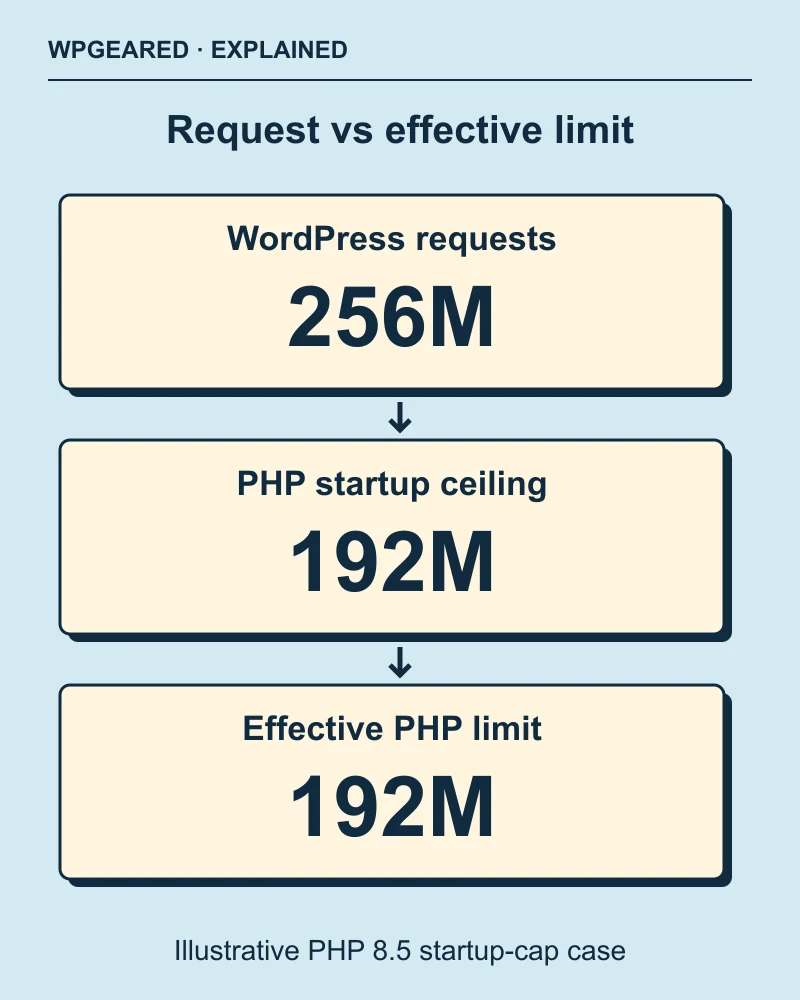
If WordPress says it ran out of memory, do not start by adding a larger number everywhere. To increase WordPress memory limit settings safely, first check the effective PHP memory_limit for the web request that fails. A WP_MEMORY_LIMIT constant is a request from WordPress; it does not override a host policy or a PHP startup cap. If Site Health shows 192M while your configuration asks for 256M, PHP is still capped at 192M.
The safe sequence is short: record the current value, back up the site, identify the web PHP handler, change one applicable setting, repeat the same workflow, and keep a rollback ready. The steps below explain the settings and why a change sometimes appears to do nothing.
Understand the three memory settings
These names describe different layers. The value that matters for a request is the PHP value actually loaded by that request.
| Setting | WordPress uses it for | What to check when it does not behave as expected |
|---|---|---|
WP_MEMORY_LIMIT |
The normal target for frontend and ordinary requests | PHP or the host may refuse to raise the runtime limit |
WP_MAX_MEMORY_LIMIT |
A target for admin, cron and some image work; it is not necessarily numerically higher than WP_MEMORY_LIMIT |
The effective PHP ceiling still controls the request |
PHP memory_limit |
The per-process ceiling PHP applies to a script | Different SAPIs and configuration files can report different values |
In current WordPress core (checked November 2026), the conditional single-site WP_MEMORY_LIMIT target is 40M and the multisite target is 64M when PHP can change its limit. The default maximum target is 256M in the ordinary case. Existing higher PHP values are preserved, and an explicitly higher WP_MEMORY_LIMIT can become the maximum target. For an undefined constant, when PHP reports that the setting is not changeable, core uses the current PHP value as its default. These are targets, not promises that every host will report those numbers.
WordPress documents the distinction in its PHP configuration guidance and implements the defaults in wp_initial_constants(). PHP’s own memory_limit documentation describes the process ceiling. A higher limit can also increase pressure when several PHP workers run at once, so “more” is not automatically “faster.”
Step 1: Check the effective value first
Open Tools → Site Health → Info. Labels vary with WordPress versions and translations. In the WordPress Constants section, record WP_MEMORY_LIMIT. In the Server section, look for the PHP version, PHP SAPI and PHP memory limit; core can also show a separate admin-screen PHP value when it differs. Current debug-data fields are described by get_wp_constants() and get_wp_server(). Do not assume WP_MAX_MEMORY_LIMIT appears as its own Site Health field.
Write down the URL or action that fails, whether it is frontend, admin, image processing or cron work, and the time you checked it. PHP SAPI means the interface serving PHP—for example, the Apache module, PHP-FPM, CGI/FastCGI or the command line. CLI PHP and web PHP can therefore use different versions and configuration files. A command-line value is useful for diagnosing the shell, but it does not prove the value serving the browser. Do not publish a phpinfo() page just to inspect this; ask your host for a protected diagnostic if Site Health is insufficient.
Step 2: Back up and choose a rollback
Back up wp-config.php and the database before editing configuration. Keep the copies outside the public document root. The manual cPanel staging guide explains a complete copy and a safer place to test configuration changes.
Make one small, reversible change. Save the original file, note the line you added, and know how to restore it through File Manager, SSH or your host’s recovery tools. A malformed .htaccess directive can cause an HTTP 500 before WordPress loads, so keep an alternate way to remove it.
Step 3: Increase WordPress memory limit settings in wp-config.php
Start with WordPress’s own configuration file after you have recorded the effective web PHP value. Site Health reports values from an admin request; it does not tell you whether the host permits PHP to raise its limit. Add the constants inside the existing PHP block, before the line that loads wp-settings.php (normally near the “That’s all, stop editing” comment). Use one definition for each constant; a later duplicate does not replace the first definition.
The WordPress configuration file
This exact example requests 256M for normal and higher-context work. It is an example, not a universal target. If your host already reports a higher effective value, do not lower it to match this snippet.
define( 'WP_MEMORY_LIMIT', '256M' );
define( 'WP_MAX_MEMORY_LIMIT', '256M' );
Save the file, reload Site Health, and repeat the failing workflow. If the constants change but the PHP value does not, check the request context, file location, existing higher value and host or startup restrictions before concluding that the host controls the effective limit. Do not keep stacking definitions in the hope that one will win.
php.ini or .user.ini
If your host documents a per-site PHP file, use the handler-specific method it supports. The configuration line is:
memory_limit = 256M
PHP processes .user.ini files for CGI/FastCGI requests, not every PHP deployment. Its per-directory INI documentation says PHP searches from the requested script directory upward to the document root and re-reads these files according to user_ini.cache_ttl; the documented default is 300 seconds (five minutes), checked November 2026. A web request may therefore continue using the old value briefly. This behavior is documentation-based here, not tested on a hosted CGI/FastCGI site. Ask the host which directory and PHP version serve your domain before editing a file.
Apache module PHP only
Put this in the site’s .htaccess file only when the site is running PHP as an Apache module and the host permits per-directory PHP values:
php_value memory_limit 256M
Do not use this directive on PHP-FPM, CGI or FastCGI; it can produce an HTTP 500. PHP’s configuration-change documentation and configuration modes explain why the directive is handler-dependent. Remove the line immediately if the site returns 500, then restore the previous file and retest.
cPanel or your host
cPanel’s current MultiPHP INI Editor documentation describes a domain/account editor that may write php.ini, .user.ini or .htaccess, depending on the directive and handler (checked November 2026). Select the domain and document-root path that actually serve the affected site, then confirm with the host whether a PHP-FPM or Apache reload is required. Hosts can disable the editor, change its labels or generate a different file. Choose the supported web-PHP method once; do not combine cPanel output with guessed directives from another handler. If the host enforces a startup cap, ask support to change the web configuration rather than repeatedly editing WordPress files.
PHP 8.5 adds a startup-only max_memory_limit ceiling (checked November 2026; see PHP’s core directives documentation). A request for 256M can still leave the effective value at 192M if that cap is lower. A php_admin_value or account policy can similarly prevent runtime changes. These are different from account RAM or worker limits, which may fail under load while the reported memory_limit stays unchanged.
Step 4: Verify the web request
Reload Site Health on the same installation and domain, compare the reported PHP value with the value before your change, then repeat the exact workflow that failed. Site Health is only one admin request; check frontend, admin, image and cron work separately when those are the affected contexts.
An isolated WordPress 7.1.5/PHP 8.5.12 CLI run passed 14 checks for core defaults, higher existing values, explicit requests and the PHP 8.5 cap case (checked November 2026). The PHP defines and INI line were syntax- and execution-checked; the Apache .htaccess line was documentation-reviewed, not run. The run did not test a browser Site Health screen, cPanel, Apache, PHP-FPM or .user.ini discovery. Treat your web request as the source of truth.
Why the WordPress memory limit still will not change
- Wrong file or domain: confirm the document root and the PHP version serving this hostname. A CLI configuration can belong to another installation.
- Late or duplicate constant: keep each
define()beforewp-settings.phpis loaded and remove competing definitions. - SAPI mismatch:
.user.iniis for CGI/FastCGI; an Apache-onlyphp_valueis not a universal PHP setting. - Delayed
.user.inireload: wait for the documented cache interval, then reload Site Health. Ask the host if the file is ignored. - Startup or host cap: a PHP 8.5
max_memory_limit,php_admin_valueor host policy can reject a higher request. Support must change that layer. - Already higher or unlimited: a reported
512Mor-1explains why a request for256Mappears to do nothing. Do not choose-1as a fix; if an unlimited setting is inappropriate, ask the host for an appropriate finite cap rather than lowering it blindly. - Different root cause: a leaking plugin, slow query, timeout, worker shortage or account RAM limit can look like a memory problem. A larger ceiling may only postpone it.
Step 5: If raising memory did not fix the failure
Use staging to establish a known baseline. Reproduce the same action, disable one suspected plugin or switch to a default theme, and repeat the action. Restore the previous state between comparisons so the result is attributable; use the backup when you need to return staging to its original state. Check PHP error logs, request timing and database evidence available from the host. Do not remove plugin data just because a plugin appears in a trace.
For a broad dashboard slowdown, use the WordPress admin-slow guide. If only Elementor’s editor is affected, the Elementor loading guide is narrower. A larger investigation involving PHP, database and hosting constraints may need the WordPress speed service.
Roll back the change
Restore the saved wp-config.php, remove the temporary INI line, revert the Apache file or restore the original hosting-panel setting, then wait for the relevant PHP reload or cache interval. Check Site Health again and repeat the original workflow. If the site remains unavailable after an .htaccess edit, use the host’s File Manager or recovery access to remove that line before investigating further.