How to manage WordPress admin notices without hiding important warnings
To manage WordPress admin notices, start with the plugin that produces the message: use its supported dismissal or notification preference. If that is insufficient, selectively manage identified promotional notices. A developer can remove one verified notice callback, but there is no universal safe script that moves every notice into a persistent inbox.
Keep security, update, backup, payment and actual failure messages visible. Those messages tell you what still needs attention.
1. Identify the notice and its owner
Read the message before hiding it and identify whether it is a promotion, an ordinary confirmation or an operational problem. Its color or CSS class is not enough to make that decision.
Look for the plugin or service name, the destination of its settings link and the screen where it appears. Check that plugin's current documentation for a supported dismissal control or preference. There is no single WordPress settings location that every plugin must use.
If you dismiss a promotion, reload the relevant screen and check whether it returns. Find out whether the preference applies only to your account or changes the view for other administrators as well. Keep a short note so another person maintaining the site knows what was changed.
A notice about failed backups, a security issue, interrupted payments or a license problem may describe unfinished work. Resolve or investigate that condition before treating its message as clutter.
2. Use a notice manager selectively if you need one
One available option is Themeisle's Disable Admin Notices — Hide Dashboard Notifications. Its directory listing and changelog were checked November 2026; the current changelog lists version 1.4.10 dated November 23, 2026.
The listing documents selective hiding, compact display and access to hidden notices. Those are the developer's documented capabilities, not a guarantee that the plugin preserves every important message in every installation.
Try it on a WordPress staging site before applying it to a working business site:
- In Plugins → Add New, find the exact plugin and confirm the Themeisle author.
- Install and activate it, then open Settings → Hide admin notices, following its current documentation if labels change.
- Start with one clearly identified promotional notice.
- Open Settings → Hide admin notices → Hidden Notices and confirm you can restore the selected notice before relying on the plugin.
- Leave blanket hiding and operational-update controls alone.
- Compare the relevant screens before and after the change.
Check your regular update, security, backup and store-management screens during that comparison. A plugin listing cannot establish which notices matter on your site.
Undo the trial if you cannot reliably review or restore the notices it hides. Avoid adding another management plugin merely to hide a message that the source plugin already lets you dismiss.
Why a universal notice-moving script is unreliable
WordPress's admin_notices and all_admin_notices actions let callbacks output messages during a request. They are not a central persistent notification queue.
The core admin header runs the relevant notice actions as it renders an admin screen. Manually firing an unrelated action named default_admin_notices does not collect all the callbacks registered to those real notice hooks. Storing captured output in a global array also does not create a history that survives another request. Core behavior checked November 2026.
Replaying arbitrary callbacks on a submenu screen can introduce another problem: a callback may assume a specific screen or render a form in its original context. Do not assume every callback is a portable message string.
If you are building a dashboard page for your own plugin's notifications, use the custom admin-page guide. That is a separate, controlled implementation; registering a submenu does not move other plugins' notices into it.
3. Developer option: remove one verified promotional callback
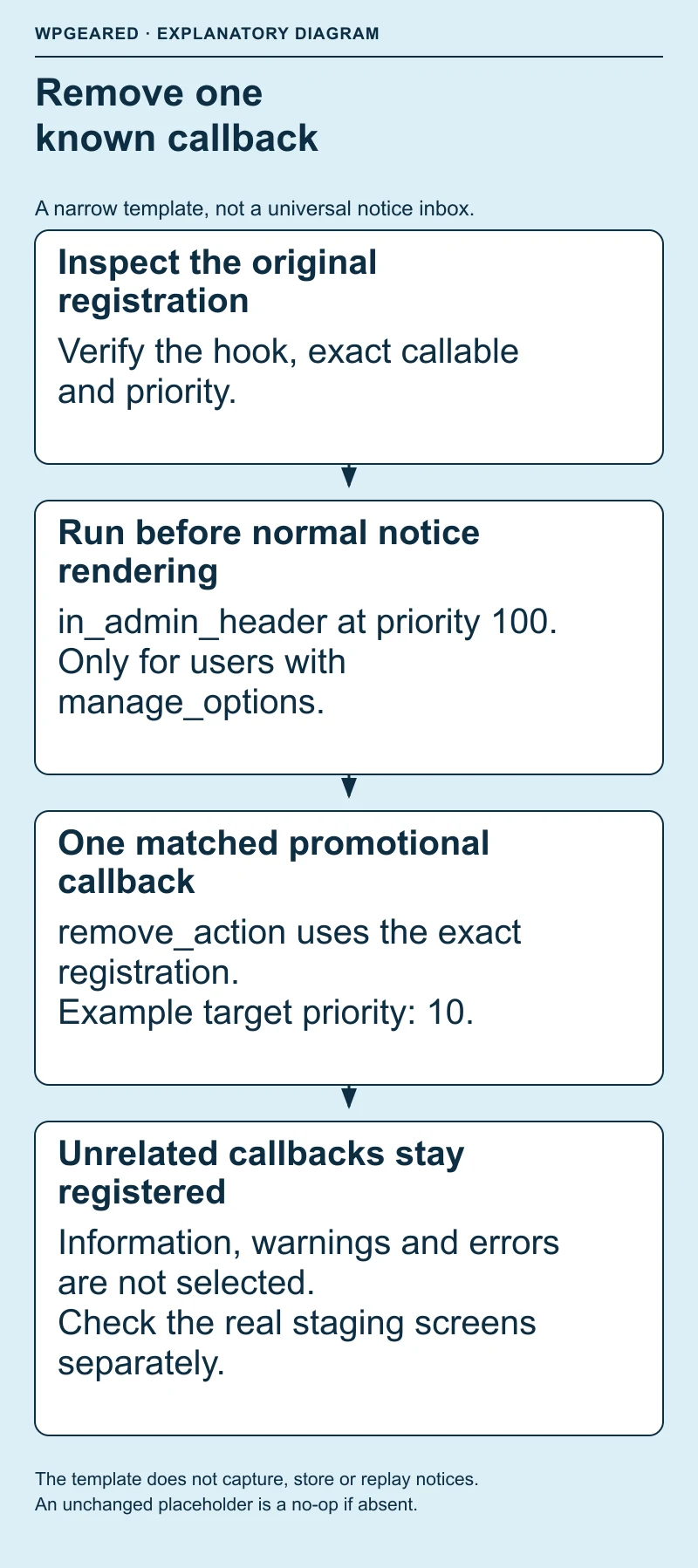
This option is for a developer who has inspected the source plugin's registration. You must know the exact hook, callback and priority. If you cannot identify those, use the plugin's preference or ask its maintainer.
WordPress remove_action() must match the original callable and priority, and run after registration but before the callback executes. A guessed function name does not handle an object method or anonymous function. Checked November 2026.
The following normal plugin removes only a callback named example_plugin_promo_notice registered on admin_notices at priority 10, for users who can manage options. That callback and priority are placeholders. Unchanged, the example does nothing when that callback is absent. Replace them only with the registration you have verified belongs to a promotion you intend to suppress.
Create wp-content/plugins/wpgeared-selective-admin-notice/wpgeared-selective-admin-notice.php:
<?php
/**
 * Plugin Name: WPGeared Selective Admin Notice
 * Description: Removes one verified promotional notice callback for users who can manage options.
 * Version: 1.0.0
 */

defined( 'ABSPATH' ) || exit;

function wpg_archive_hide_verified_promo() {
    if ( ! current_user_can( 'manage_options' ) ) {
        return;
    }

    // Placeholders: replace the callback and priority with the inspected registration.
    remove_action( 'admin_notices', 'example_plugin_promo_notice', 10 );
}

add_action( 'in_admin_header', 'wpg_archive_hide_verified_promo', 100 );
Activate this normal plugin on staging after replacing the placeholders. Keep it separate from your theme so its purpose and deactivation are clear.
The in_admin_header hook is before ordinary notice rendering in core. Priority 100 delays this intervention within that hook; it is not a guarantee against a producer registering its callback even later. The current_user_can() check scopes it by capability rather than assuming a role name.
For the underlying terminology, see WordPress actions and filters. This example removes a selected callback; it does not store, move or dismiss it in the source plugin's own records.
4. Check the behavior before keeping the change
Compare the same screens and accounts with the intervention active and inactive:
| Check | Expected result |
|---|---|
| Verified promotional callback on its usual screen | Its output is absent for a user with manage_options. |
| Unrelated informational, warning and error callbacks | Their output remains available. |
Account without manage_options |
This plugin makes no change to its notice callbacks. |
| Absent placeholder or mismatched priority | Nothing is removed by that call. |
| Public page | The plugin adds no public rendering behavior. |
| Deactivate the intervention and reload | The source plugin can render its normally registered callback again. |
Do not manufacture a real payment, security or backup failure to test a notice. Use safe fixtures on staging and verify the real operational screens separately.
If the wrong message disappears, deactivate the intervention and revisit the callback you selected. The narrow code cannot judge the importance of a callback for you.
Undo the cleanup or investigate a remaining problem
Deactivate WPGeared Selective Admin Notice and reload the admin screen to remove this intervention. It does not delete messages, alter the source plugin's settings or provide a stored-notice inbox. If the source plugin already dismissed a message through its own preference, restore that preference separately.
If the promotion remains visible, recheck the hook, callable and priority. It may use another notice hook or register after the removal runs. Do not respond by broadening the code to remove all callbacks or hide every .notice element.
If the dashboard still feels slow, measure that problem using the slow WordPress admin guide. Hiding visible notices alone does not establish what was taking time.
A persistent notification inbox needs deliberate storage, ownership and permissions. If you need one, define those requirements before commissioning a plugin implementation.